AUNDRIX

Aundrix, your AI workspace and command center.

It reads your team's e-mail, turns it into deadlines and work, and drafts replies and documents for your review. Nothing is sent without a person's approval.

Aundrix · AI workspace and command centerWorking today
  1. 01E-mail comes inGmail, Outlook and more.
  2. 02Aundrix reads itIt sorts it and sums it up.
  3. 03Deadlines and workIt offers the dates. The work is tracked.
  4. 04You approveNothing goes out until you press Send.
Being builtAn assistant you can talk to, a command hub, and workflows you set. Direction, not dates.See where it is going
NEWWork with no file number.

Aundrix is in preview, so the app opens with an access key. Ask for one, then press Continue as guest. Have a workspace? Sign in.

The concept

From inbox to orbit.

Aundrix starts from one idea: work should not get lost between the inbox and the people who do it.

The ideaWhat we are working toward
The problem

Work arrives by e-mail, and gets lost there.

A request comes in. Someone has to notice it, work out what it asks for and when it is due, pass it to the right person, and remember to answer. Most of that is kept in people's heads, and that is where things get missed.

The idea

The AI does the reading. People do the deciding.

Aundrix reads each e-mail as it comes in, says in one line what it asks for, offers the due date, and sets it up as a piece of work for a person to check and add. From then on it has an owner and a date, and it stays in view until it is done.

The goal

One place where a business runs its day.

What needs you, what is due and what is moving, with an assistant that helps and a person who decides. Nobody should have to carry the office in their head. We are building toward that, one step at a time.

The name

Inbox is where work arrives. Orbit is where it stays in view: owned, dated and moving, until it is done.

From inbox to orbit An e-mail leaves the inbox and rises into an orbit around your team. Along the way it is read, dated and owned, and it keeps circling in view until it is done. Your team Inbox Where work arrives Read Dated Owned Done Orbit Where it stays in view
  • 01

    The AI does the routine part

    Reading, sorting, summing up and drafting. When it is not sure, it says so instead of guessing.

  • 02

    A person makes the decisions

    Nothing goes out until a person presses Send, and Aundrix never changes a date on its own.

  • 03

    It fits your kind of work

    Each business teaches it its own work, due dates and documents. Made for any business that runs on e-mail, deadlines and handoffs.

Inside the app

Take a look inside.

Real screens from the build we are testing now, retaken when the look changes. Everything shown is made up.

What you are looking at. These screens use the new side menu, which a business turns on in Setup. The newest ones reach the live app a little after they are tested.

What Aundrix is

What it does now, and where it is going.

The AI reads, sorts and drafts. People decide, and nothing goes out until a person presses Send.

What it doesAvailable today
  • Reads your e-mail

    Sorts each new e-mail and sums up in one line what it asks for.

  • Puts deadlines on the calendar

    Offers the due date from your own rules. A person adds it, or types a different one.

  • Drafts replies

    Suggests a reply from your own template. Ask the AI for one, and it writes in the sender's language.

  • Fills your documents

    Fills your own Word or PDF template from the e-mail and the work's files, and marks anything it cannot confirm: check this.

  • People stay in charge

    Nothing goes out until a person presses Send and confirms. Aundrix never changes a date on its own.

  • Connects to your e-mail

    Gmail and Outlook sign in on their own pages. AOL, Yahoo, iCloud, Comcast and company mail servers work too.

  • Two-step sign-in

    A passkey, such as Face ID, a fingerprint or Windows Hello, or an authenticator app. A Microsoft work account uses Microsoft's own second step.

  • Your language

    Pick the app in English, Spanish, Chinese (Simplified), Korean, Haitian Creole or Russian. You can translate e-mails into 37 languages.

  • Teams and handoffs

    Split work into teams. Hand a piece of work to a colleague and it shows in their bell.

  • Teach it your work

    Each kind of work is a skill, with its own words, due dates and documents.

  • For any business

    Made for any business that runs on e-mail, deadlines and handoffs, such as property, accounting, insurance, billing or law offices.

  • Your information

    Each business has its own separate workspace. A person's work stays private until they publish it. Each kind of AI has its own switch, and you can disconnect your mailbox any time. Privacy Policy (draft).

What it is being built to beDirection, not dates

Aundrix is growing into the one place where a business runs its day: what needs you, what is due and what is moving, with an assistant that helps and a person who decides.

  • In development

    A command hub

    What needs you, what is due and what is moving, in one view.

  • In development

    Project pages

    One page for each case, job or project, with its notes, people and checklists.

  • Planned

    Workflows you set

    A business sets its own steps and who approves what, in plain words, and tests them first.

  • Planned

    An assistant for your records

    Answers from your own records and shows where each answer came from. It only suggests. A person decides.

  • Direction

    An assistant you can talk to

    Ask it out loud, the way you would ask a colleague. This is where Aundrix is heading. It is not built yet.

  • Direction, not dates

    The AI proposes and a person decides. No dates are promised.

Available today

From one e-mail to tracked work.

A made-up example from a law office. The steps are the same for any business.

Guest workspaceMade-up data ·4 steps
The guest workspace Home screen. A made-up e-mail from Nora Whitcombe, opposing counsel, titled Revised stipulation, Calloway v. Brandt Logistics, asks for a response no later than Monday, November 30. The e-mail
The same Home screen, with what Aundrix picked up: the ask, the suggested next action to review the stipulation and respond, who should own it, and the due date, Mon, Nov 30, tagged E-mail deadline with the e-mail's own words quoted. What Aundrix picked up
The Add as work form, filled in from the e-mail: the type is Review and respond, the title is Calloway v. Brandt Logistics, revised stipulation, who does it is You, and it is due Monday, November 30, the date the e-mail asks for.
The My work list, with the new work item Calloway v. Brandt Logistics, revised stipulation, owned by Guest and due Nov 30, among the other open work. New in My work

You stay in charge. Aundrix never changes a date or sends an e-mail on its own. In the guest workspace the e-mail is already read for you, because the AI does not run there.

Everything else Aundrix does today
What it does

Every e-mail. Every deadline.
Every reply.

Aundrix is built for teams whose work arrives by e-mail and runs on deadlines: law firms, property managers, accountants, insurance and billing offices, and more. Each office starts from its own kinds of work, in its own words, such as showings, repairs, lease renewals, and bills to pay for a property office. Aundrix handles the sorting and the first draft, and people make the decisions.

Dashboard

Everything on one screen.

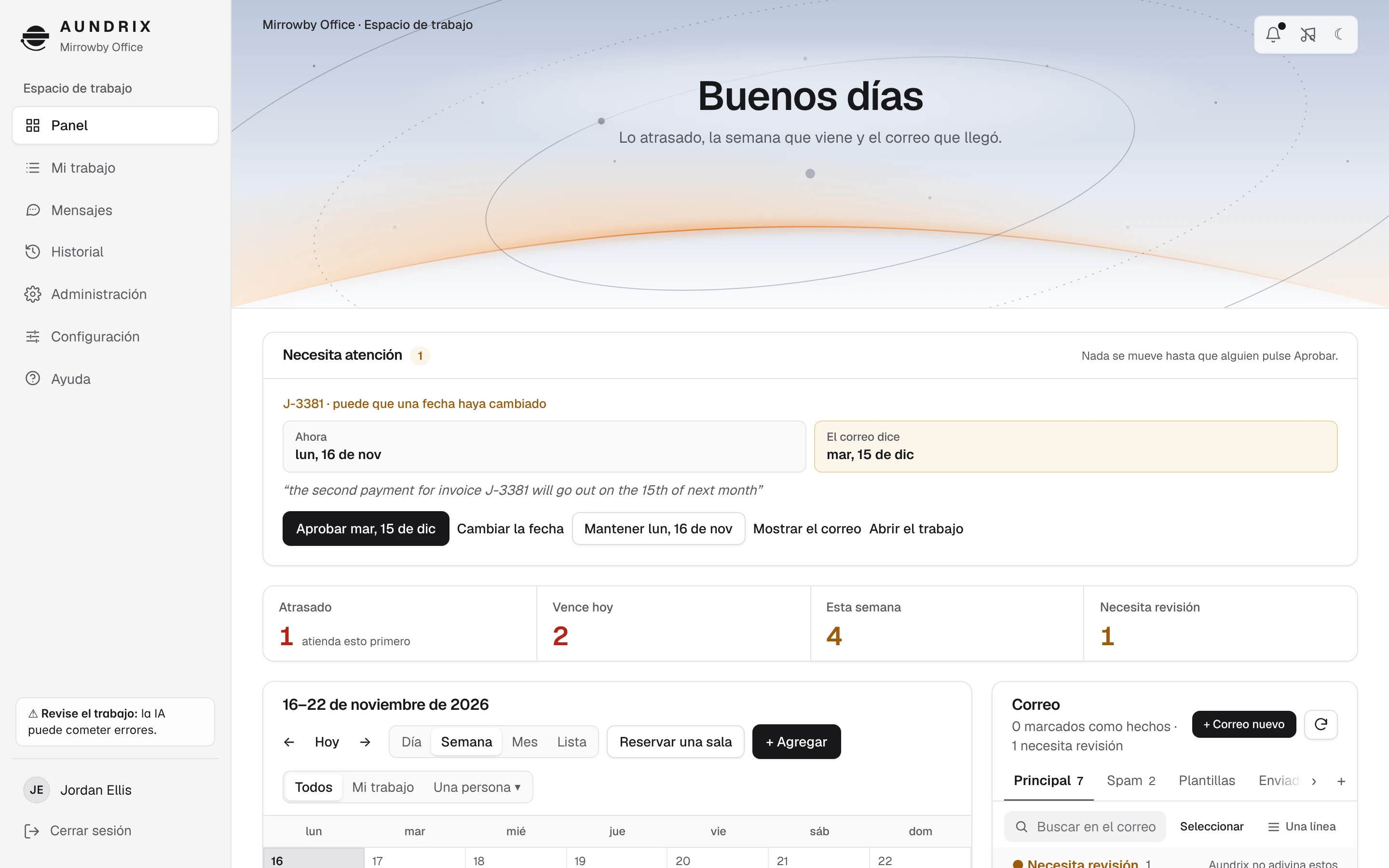
Three counts show how much of your own work is late, due today, and due this week. A fourth shows how many e-mails need a look. The calendar and the mail sit side by side. A row above the calendar switches it between Everyone, My work, and A person, which shows only what that colleague published. Work with a set time shows that time on the calendar and comes first on its day. Booked rooms show there too. An item that came in before the day it is due appears on the calendar twice: on the day it came in and on the day it is due. When Aundrix's AI reads a later e-mail that says a date on your open work has moved, the dashboard puts A date may have moved at the top, under Needs attention, with the e-mail's own words. Press Approve to use the new date, change it to another, or Keep the old one. Aundrix never changes a date on its own.
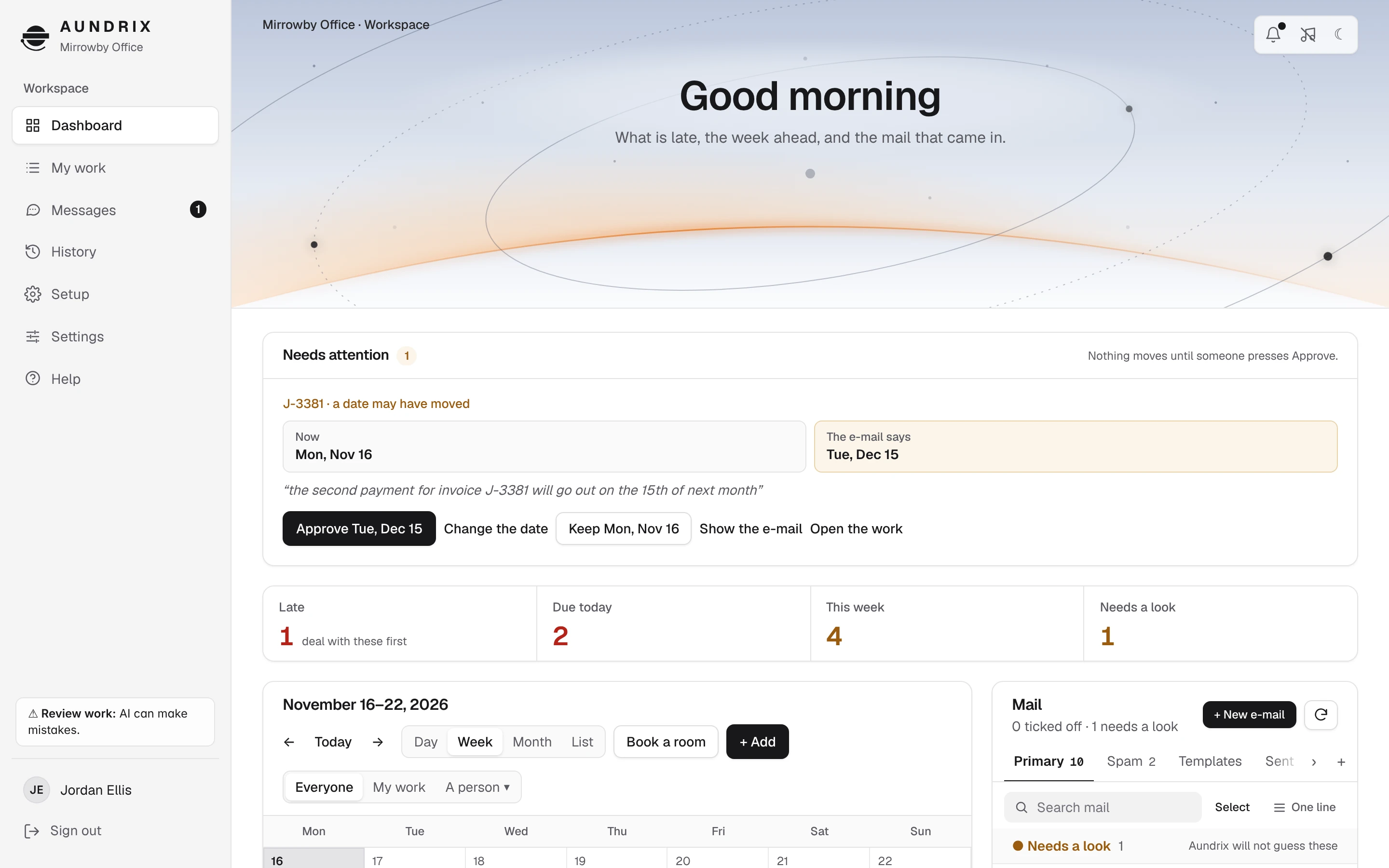
The Aundrix dashboard: a Good morning greeting, a Needs attention card saying a date may have moved, with Approve, Change the date, and Keep buttons, above the counts for late, due today, this week, and needs a look, and the week's calendar beside the mail.
Mail

An inbox you can search.

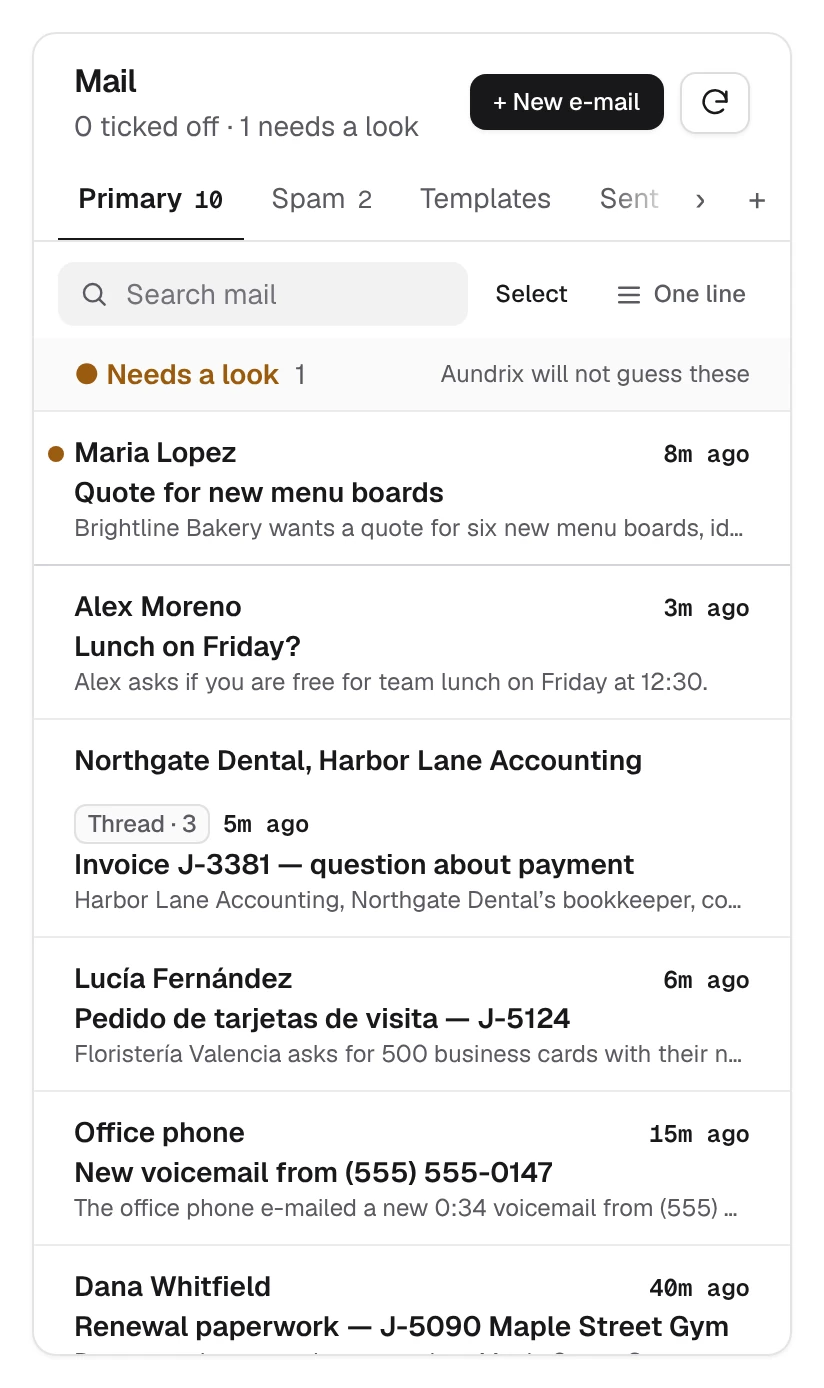
Connect Gmail, Outlook, or other e-mail such as AOL, Yahoo, or iCloud, and new mail shows up on its own. When Aundrix's AI reads an e-mail, it writes a short summary in English, whatever language the e-mail was written in, and for a reply it also sees up to three earlier e-mails in the conversation. Each kind of AI has its own switch in Settings, all on by default, and with Read my new e-mail off, Aundrix sorts that person's mail by its own rules, without AI. A conversation is one row, tagged Thread · 3, with every sender's name. Search looks through all the mail still in your inbox, Spam included. When an e-mail asks for its work by a certain day, Aundrix offers that date when you add the work, and never puts it in on its own. When an e-mail names a day and a time for something, Aundrix offers that day and time too, as a meeting or appointment when it is not sure what else the e-mail is. Junk that got past your mailbox can go under Spam with one press, and Not spam brings it back. Your mailbox keeps it where it is. When you add an e-mail's work, you can turn on Confidential, and only you see what the work is. If the work is on the calendar, coworkers see only your initials on its day, and its time if you choose to show it. When Aundrix isn't sure about an e-mail, it puts it in Needs a look. Aundrix will not guess.

The Aundrix inbox: New e-mail, tabs for Primary, Spam, Templates, and Sent, a Search mail field, a Needs a look group, and e-mails with one-line summaries, including a conversation of 3 e-mails tagged as a thread.
Reading

Read beside the list.

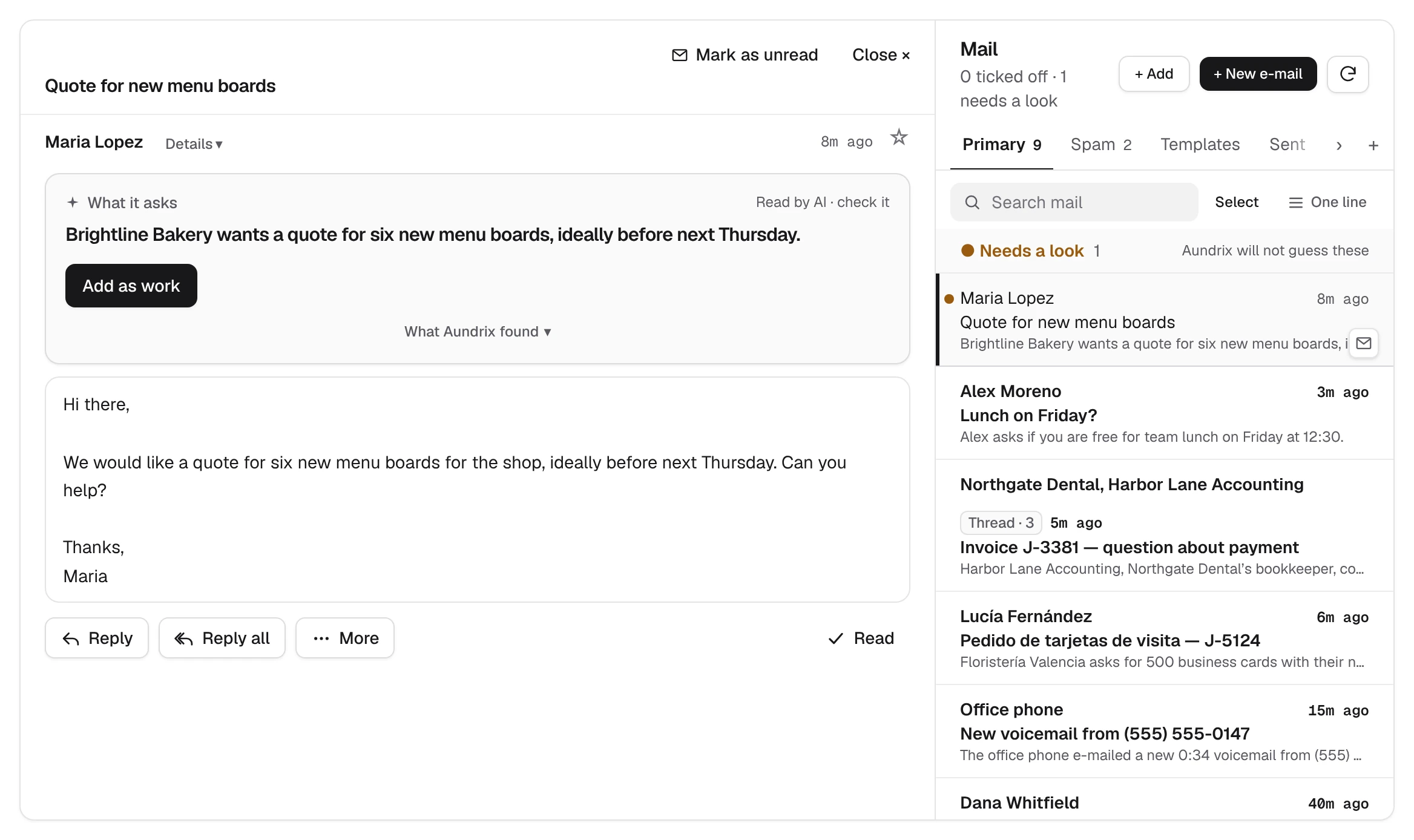
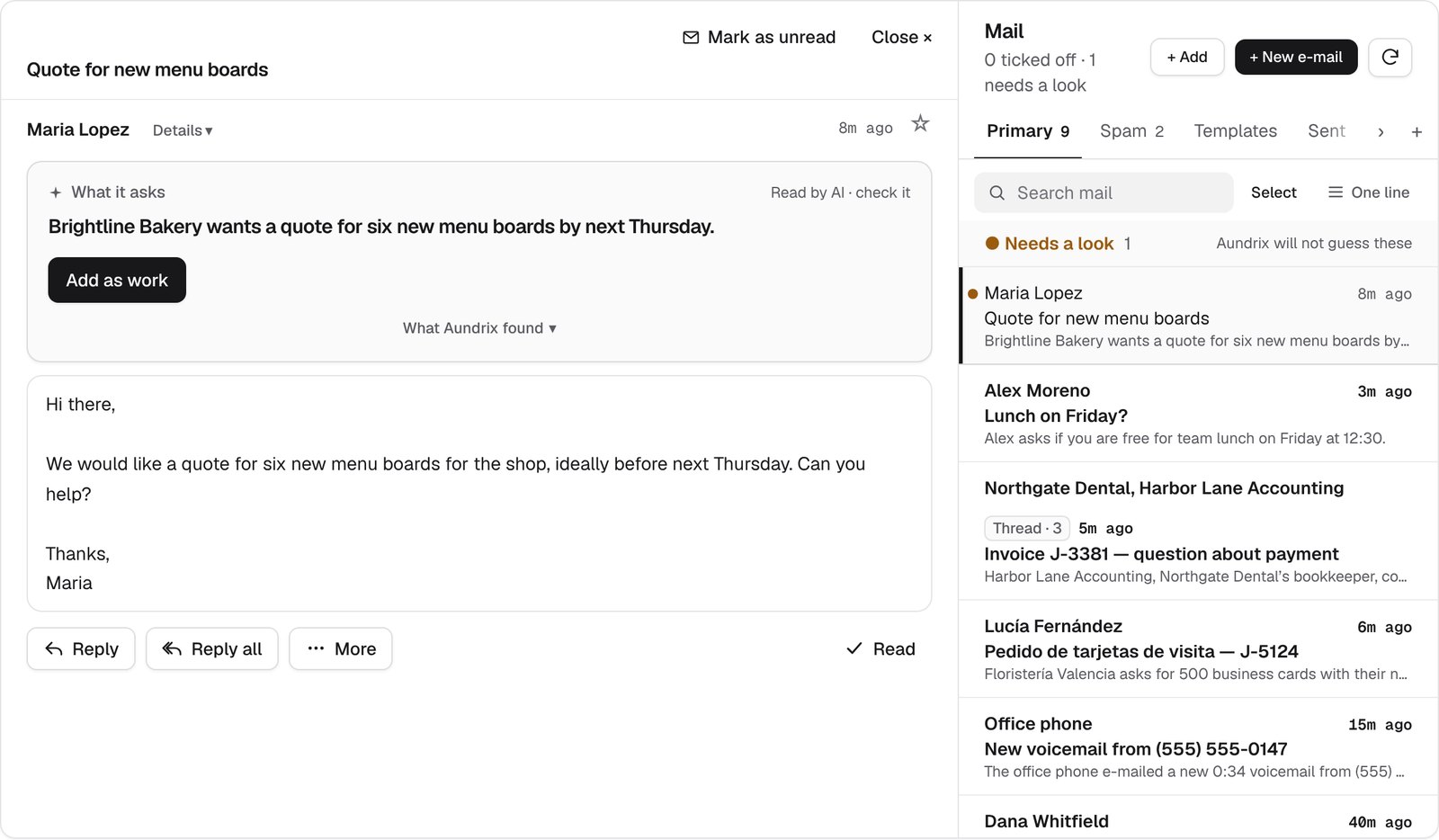
On a computer, click an e-mail or a conversation and it opens beside the list, like Outlook, with the list still there and the open one marked. On a computer, the Up and Down keys move to the next e-mail without going back to the list. On a phone it opens full screen, and ← Inbox takes you back to where you were. You see everyone who wrote, the newest e-mail open, and the earlier ones as one line each, and a reply you have started is kept while you look through other mail. In Settings, each person picks the language e-mails are translated into, from 37 languages. When Aundrix's AI has read an e-mail in another language, the e-mail offers to show it in yours, marked as translated by AI, and you can go back to the original.

An e-mail open beside the mail list: the e-mail asking for a quote for six menu boards, one sentence saying what it asks, an Add as work button, and Reply, Reply all, More, and Read under it, with the list beside it and the open e-mail marked.
Language

Aundrix in your language.

In Settings, under Language, each person picks their own App language: English, Spanish, Chinese (Simplified), Korean, Haitian Creole, or Russian. Aundrix's menus, buttons, and main pages change to it at once. The first page has the same picker, so someone can sign in in their own language too. E-mails and whatever people write stay exactly as they were written, and a page that is not translated yet shows in English. The translations come with Aundrix itself, so no AI is used for them. This is separate from Translate e-mails into, which offers an e-mail in the language you pick.

The Aundrix dashboard in Spanish: Panel, Mi trabajo, and Configuración in the menu, the greeting Buenos días, a card saying a date may have moved with Aprobar, Cambiar la fecha, and Mantener buttons, the counts Atrasado, Vence hoy, Esta semana, and Necesita revisión, the week's calendar, and the mail, whose e-mails stay as they were written.
Writing

New e-mail, now or later.

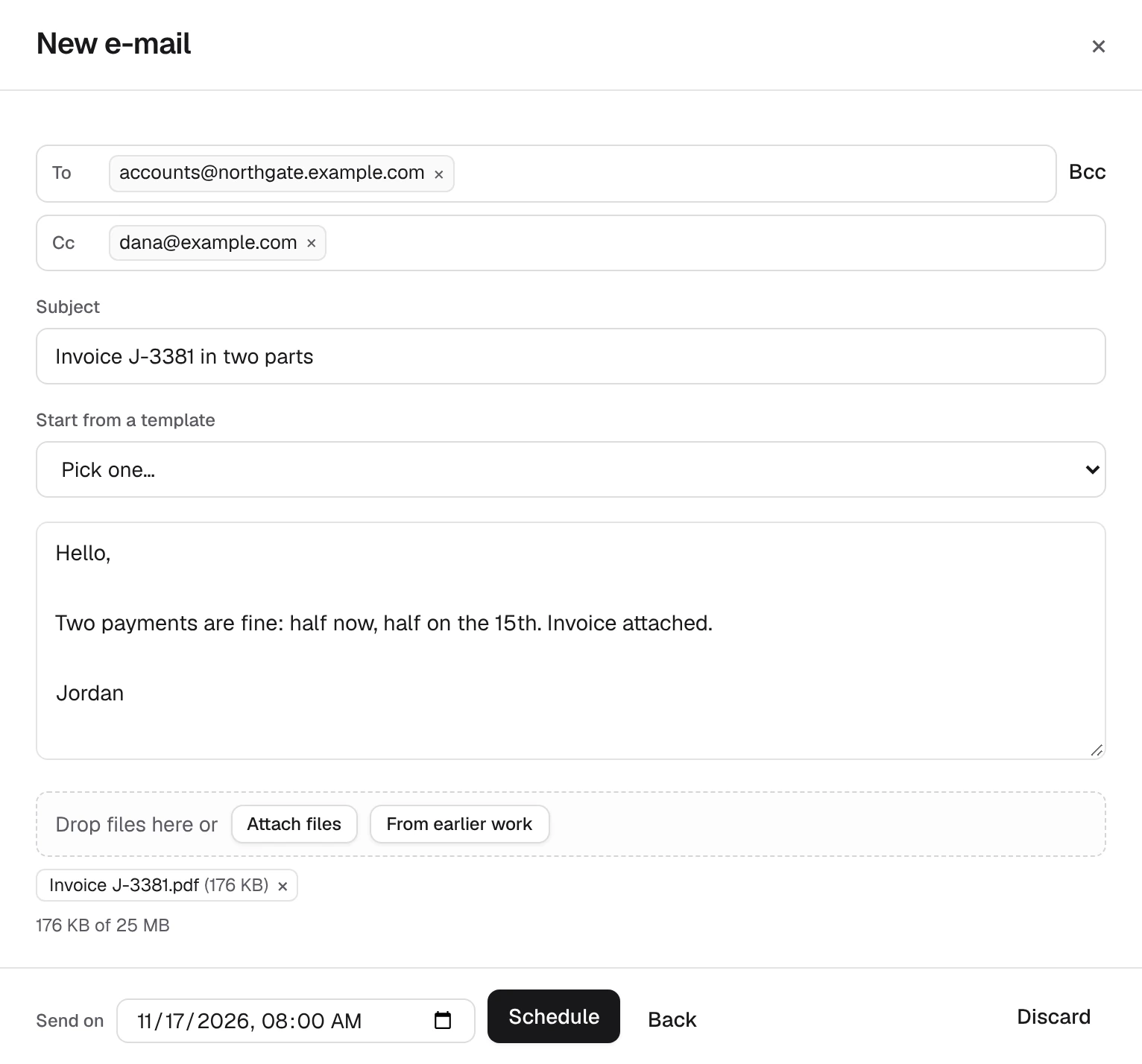
Press + New e-mail to write from your own Gmail, Outlook, or other e-mail, with To, CC, and BCC, a priority, and files from your computer or from a case's folder. Your organization's e-mail templates are there too, under Start from a template. Send later keeps an e-mail, with its files, and sends it from your own mailbox on the day and at the time you pick, as Send would. Until then, the Scheduled tab lets you change its time, send it now, or cancel it. The Sent tab lists what you sent from Aundrix, and you can add mail tabs of your own and move an e-mail into one. Gmail takes up to 25 MB of files, and so does Outlook once you press Allow bigger files under an e-mail's files and Microsoft agrees. Nothing is sent until you press Send or Send later and confirm.

A new e-mail in Aundrix: To and CC filled with made-up addresses, a subject, a short message, an attached invoice, and Send later open with a day, a time, and a Schedule button.
Any mailbox

Gmail, Outlook, and the rest.

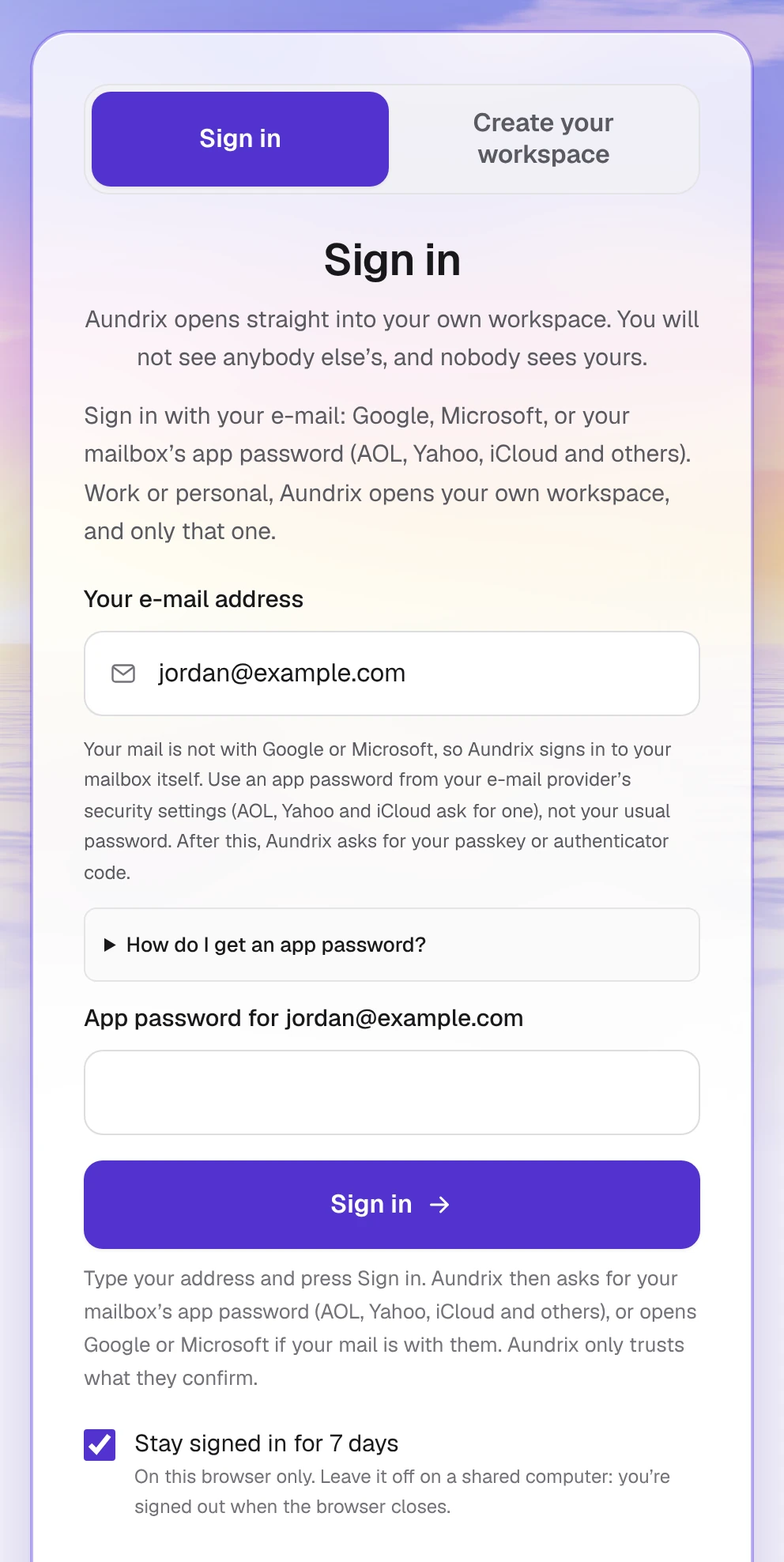
Gmail and Outlook connect through Google's or Microsoft's own page, where you allow Aundrix to read your mail. For other mail, press Connect other e-mail in the Mail panel and type your address. AOL, Yahoo, iCloud, Comcast, AT&T, your company's own mail server, and most others work. Aundrix finds the server settings itself, and if it cannot, you type them in. If your provider wants an app password, as AOL, Yahoo, and iCloud do, Aundrix shows you where to make one, and you paste it in. Others, such as Comcast, take your usual password. Aundrix keeps that password sealed and uses it only to read your new mail and to send what you write and confirm. Disconnect any time.

The Aundrix first page with a made-up address typed: a note that AOL, Yahoo, and iCloud ask for an app password from the provider's security settings, How do I get an app password?, a box for the app password, the Sign in button, and Stay signed in for 7 days ticked.
Replies

You press Send.

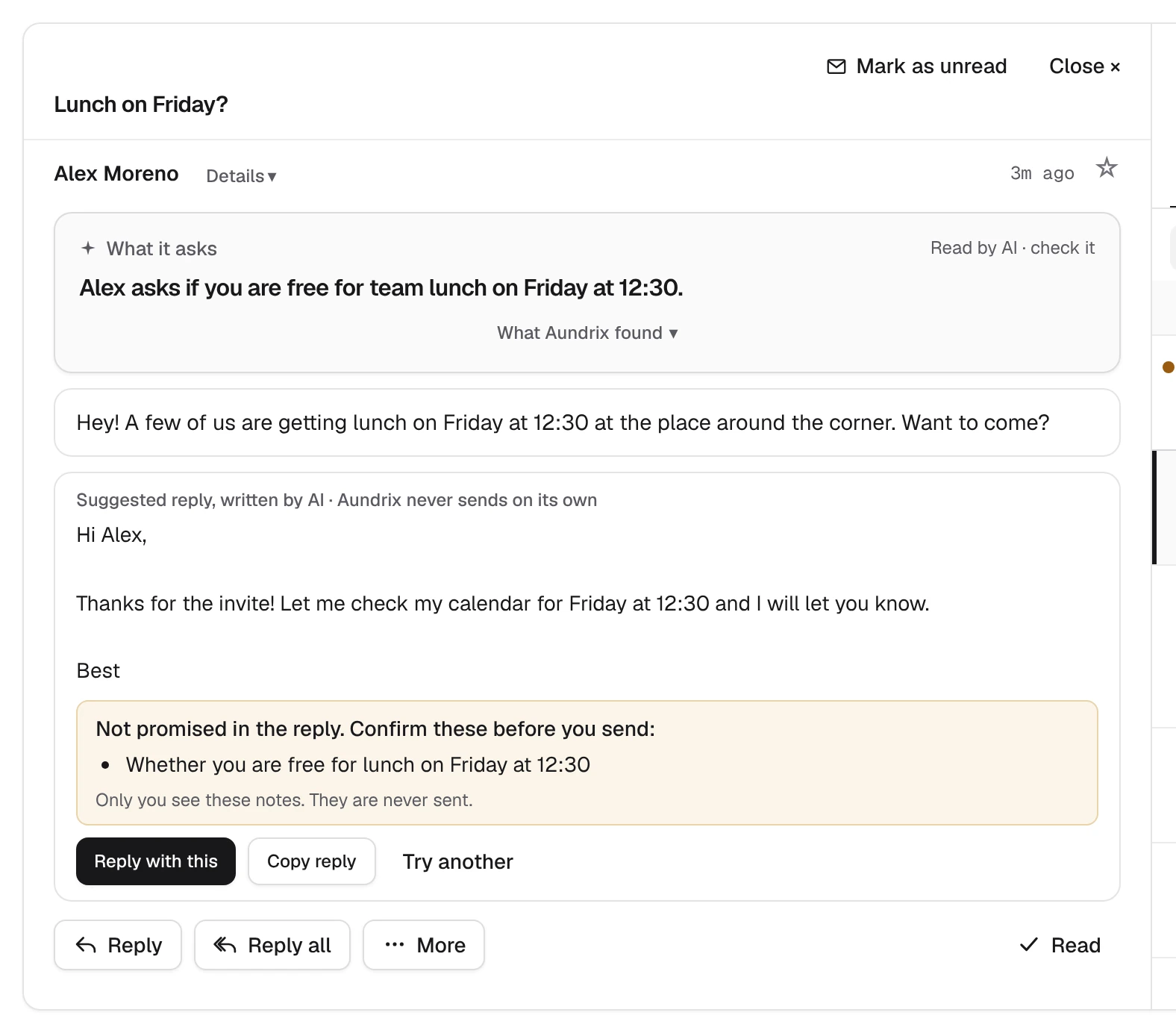
When Aundrix reads an e-mail as one kind of work, it suggests your own e-mail template for that work, if it has one, with the file number, today's date, your firm's own figures, and the signer's name filled in. When you ask, its AI writes a reply in the sender's language. Change either one as you like, or ask the AI for another. The reply goes from your own Gmail or Outlook. When an e-mail asks for replies to go to a different address, Aundrix asks you who gets yours, the sender or that address, and Send waits for your answer. If a blank is still unfilled when you press Send, Aundrix tells you first. Nothing is sent until you press Send and confirm.

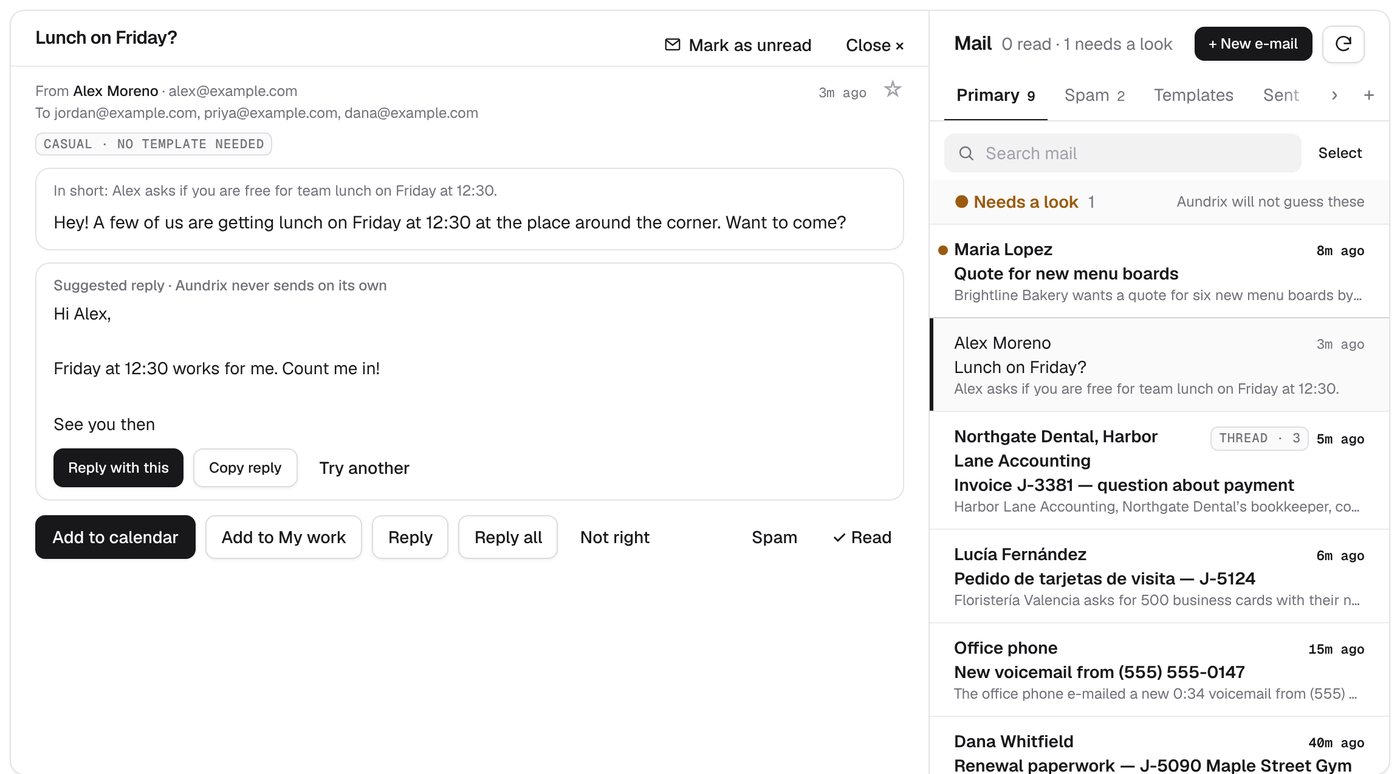
A lunch invitation with one sentence saying what it asks, and under it a suggested reply marked 'Aundrix never sends on its own', a note of what the reply does not promise, and the buttons Reply with this, Copy reply, and Try another.
Work

Yours, and everyone's.

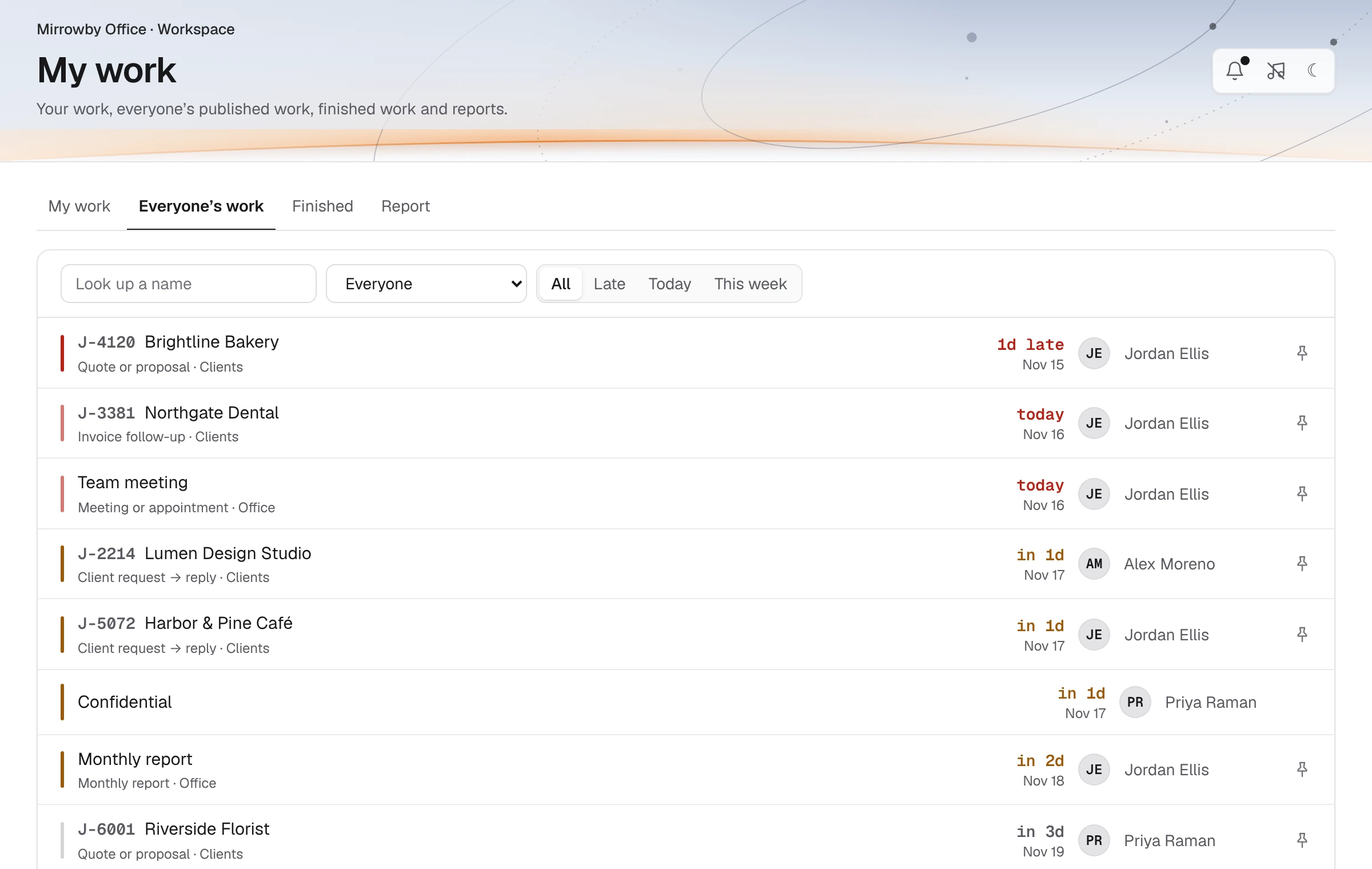
Every e-mail offers Add as work, one short form where you pick the kind of work, check the date or type your own, and say who does it. The work goes in that person's My work, and on the calendar too unless you untick it. Work that Aundrix does not draft needs no file number, so an appointment or a job can go on the calendar with a few words about what it is. Work that repeats every week or every month can end on a day you pick or after a number of times. On a phone, the calendar is a list of days. To add many at once, press + Add, then Have a list? Add several at once, and drop in a list, such as an Excel or CSV spreadsheet, a PDF, or a Word file, and each file number on it becomes its own piece of work, unless that work is already open. The My work page has four tabs. My work is your own list, with a search box and your pinned work at the top, and each row says where it shows, such as only on your calendar or on everyone's. Everyone's work is what people have published to everyone's calendar, with a name search and a person picker. Finished lists the file numbers whose work is all ticked off, newest first, so you can look one up and pick it up again. Report lists the work done, received, or due in a stretch of time you pick, as a table you can download for Excel. Hand a piece of work to a colleague and it shows in their bell until they open it, with a chime if they have Aundrix open, and History keeps a line for each hand-over. Tick work off when it is done. Nothing is deleted.

The Everyone's work tab, next to My work, Finished, and Report: a name search, a person picker, and everyone's published work with due dates, who has each piece, and a pin to keep it at the top of your own list. One piece shows only as Confidential.
Teams

A view for each team.

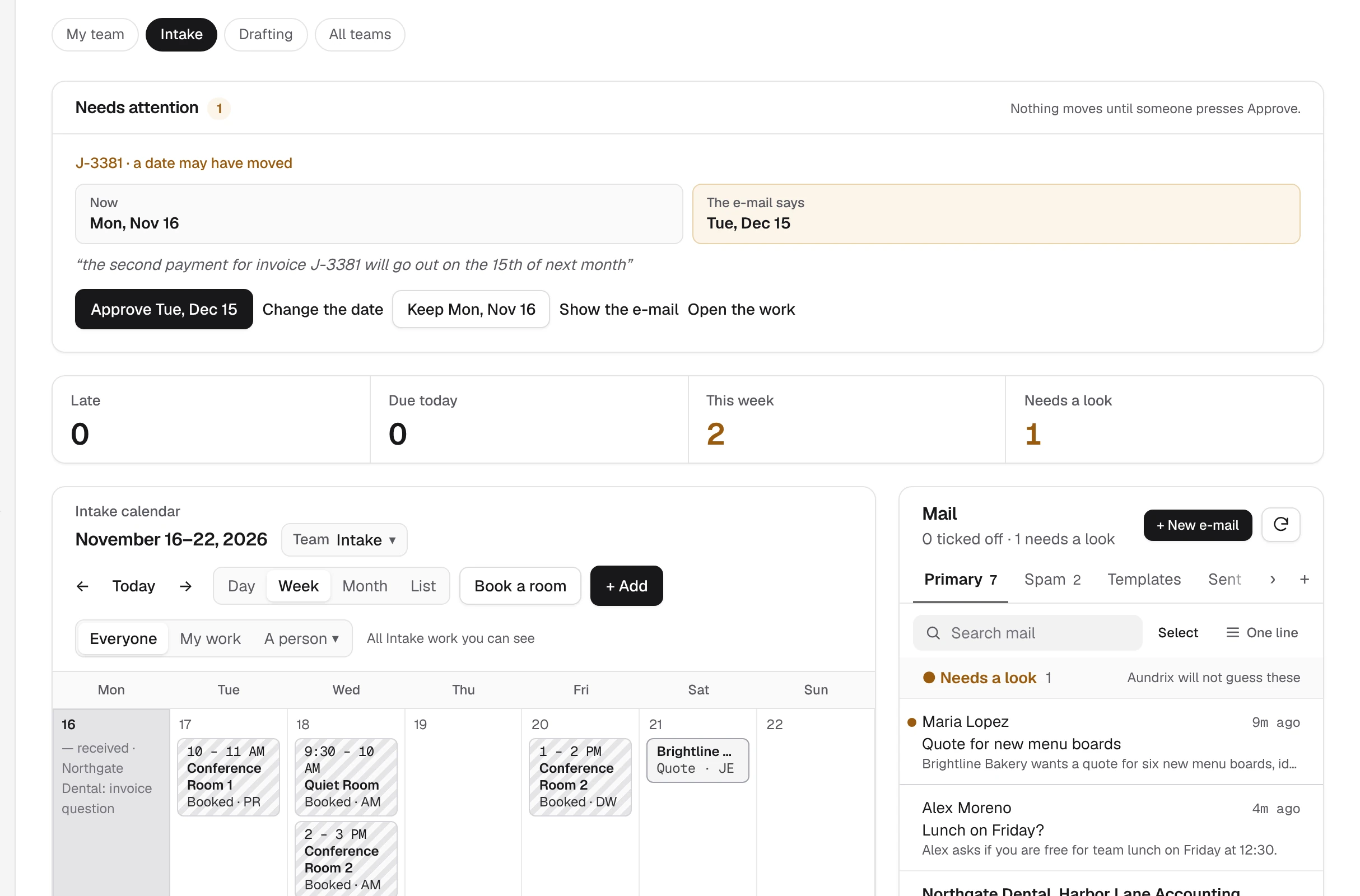
An organization can split its work into teams, such as Intake and Drafting, and one person can be on several. Each person on a team then opens on their team's view: their own work, their teams' work, and work for the whole organization. A bar at the top of the Dashboard and My work, and a Team switch on the calendar, let anyone look at another team's calendar or at every team's work at once. The late, due today, and this week counts, the calendar, My work, and Everyone's work follow it. Another team's confidential work stays hidden unless its person lets you see it, and an administrator sees only that it is there. People join or leave their own teams in Setup, and a team can add and change its own skills. A skill can say which teams it is for, and new work of that kind goes to one of them. Work added for a team by someone who is not on it waits, untaken, until someone on that team presses Take it, and confidential work stays with the person who added it. An administrator can instead have everyone open on all the work, as before teams, and then coworkers see that another team's confidential work is there, though not what it is. Removing a team deletes no work.

The Aundrix dashboard in a team view: a bar with My team, Intake, Drafting, and All teams, with Intake picked, above the counts and the Intake calendar with its Team switch.
Rooms

Book a room.

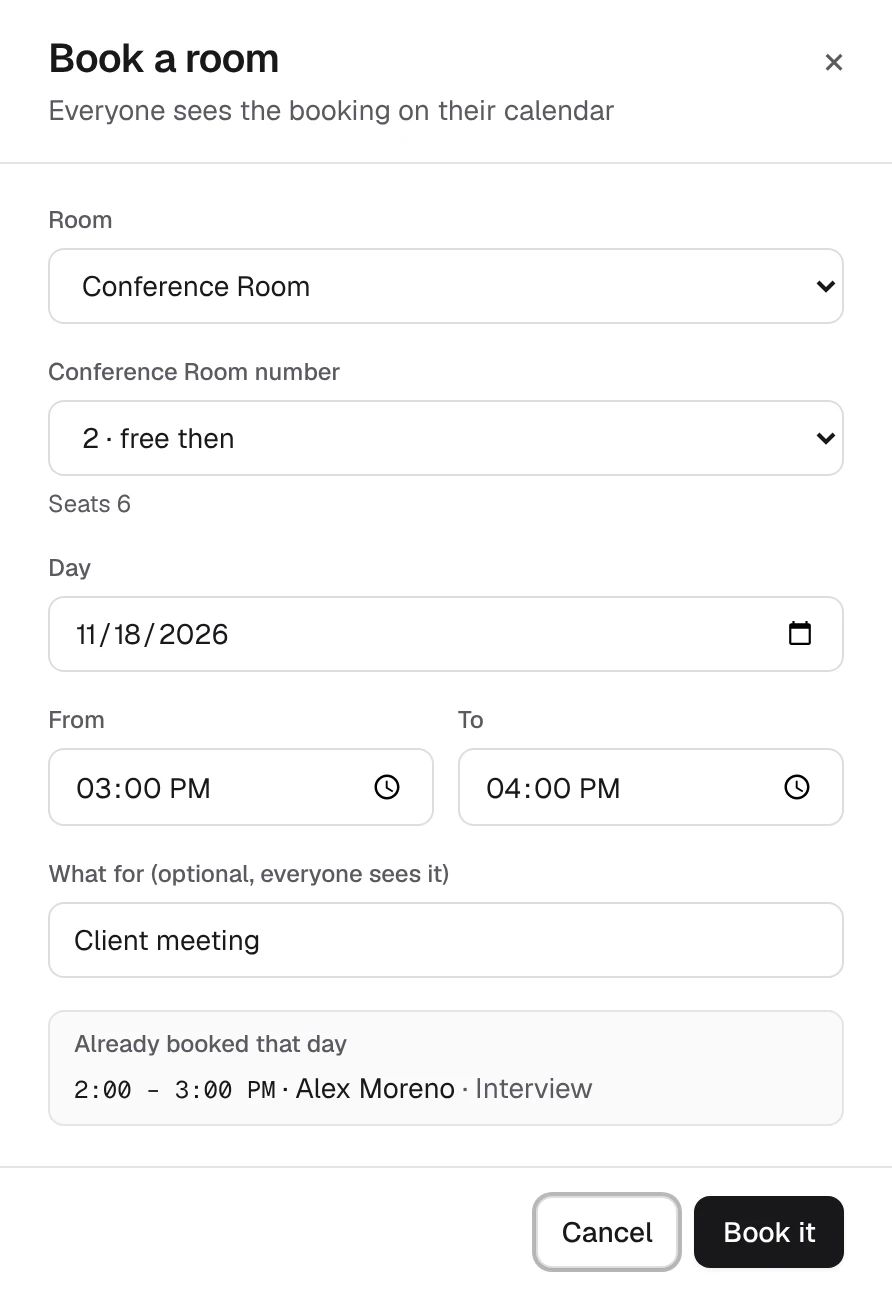
An organization lists the rooms people book, such as a conference room or a quiet room, when it signs up or later in Setup. Press Book a room on the calendar, pick the room and then its number, the day, and the time, and say what it is for if you like. Each number says whether it is free then, and the form lists what is already booked in that room that day. The booking shows on everyone's calendar, whatever team or person they are looking at. A room is never booked twice for the same time. The person who booked it, or an administrator, can cancel it, and a booking never counts as late or due.

The Book a room form: Conference Room number 2, marked free then, on November 18 from 3:00 to 4:00 PM for a client meeting, with the room's one booking that day listed below: 2:00 to 3:00 PM, Alex Moreno, Interview.
Skills

Teach it your work.

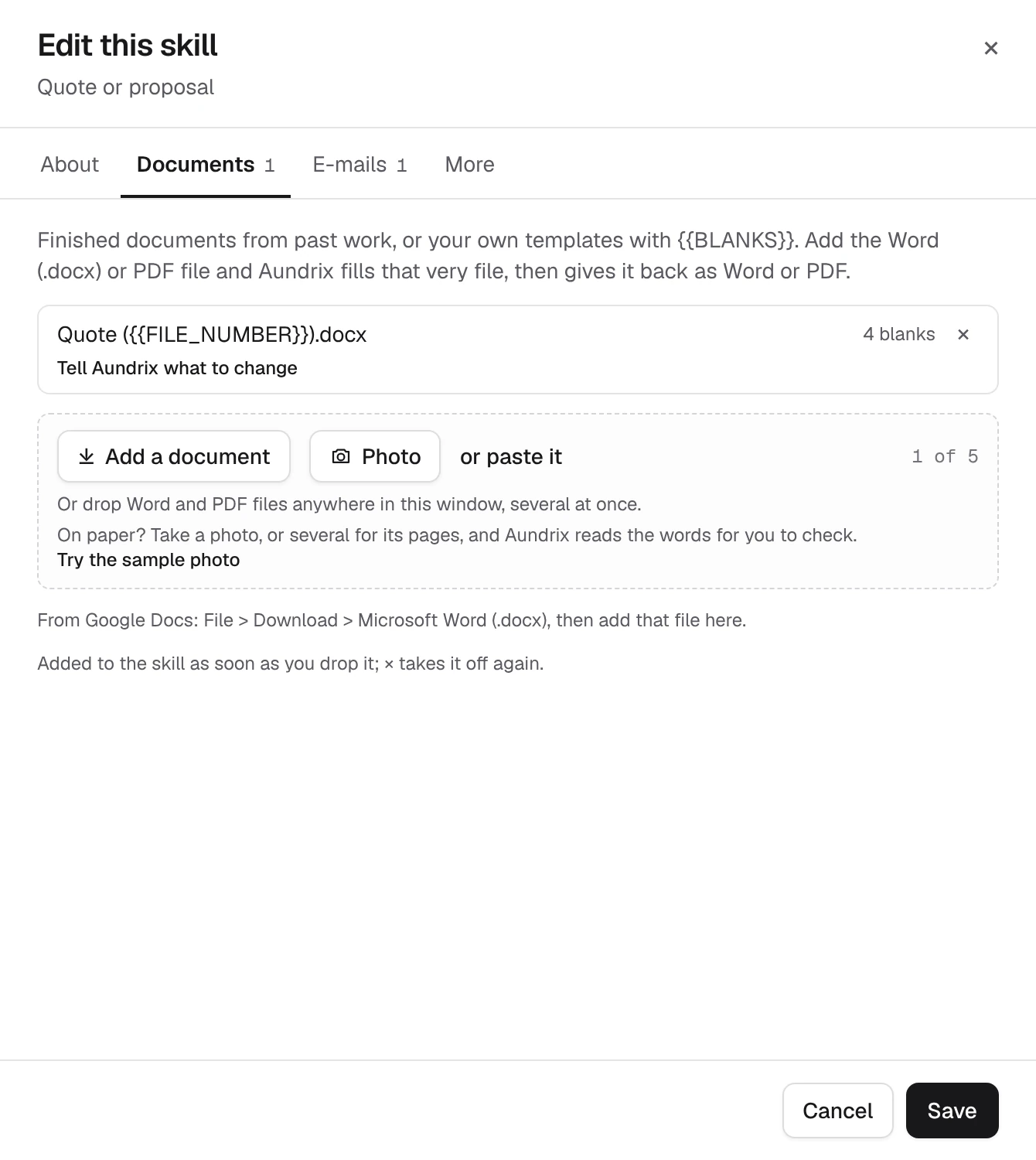
Each kind of work you do is a skill. A new skill needs only a name and its files, and Word, PDF, and e-mail files dropped together each go where they belong. Describe it in your own words, say when it is due, and give it up to 20 documents and five e-mails. Aundrix checks with you before it takes a sixth document. Words that spot its e-mails, such as renewal, tell Aundrix which skill a new e-mail is for. Aundrix drafts from your description and the documents. A document can be your own Word or PDF template. Aundrix fills that very file from the e-mail, the folder of files for that work, and your notes. With each value it fills in, the AI gives the words it took it from, and Aundrix checks that those words are really there. Anything it cannot confirm is marked check this. It leaves any blank it cannot fill for you to type in, and gives the file back as Word or PDF. When you add a piece of work of a kind it drafts from an e-mail, you choose to draft it now or later. A new organization can start with starter templates for its kind of work, to change as it likes. A saved draft is marked for review, and nothing it drafts goes out on its own.

Editing a skill called Quote or proposal on its Documents tab: a Word template with four blanks to fill, Tell Aundrix what to change under it, and buttons to add a document or a photo, with a note that Word and PDF files can be dropped several at once.
Recordings

Calls, in writing.

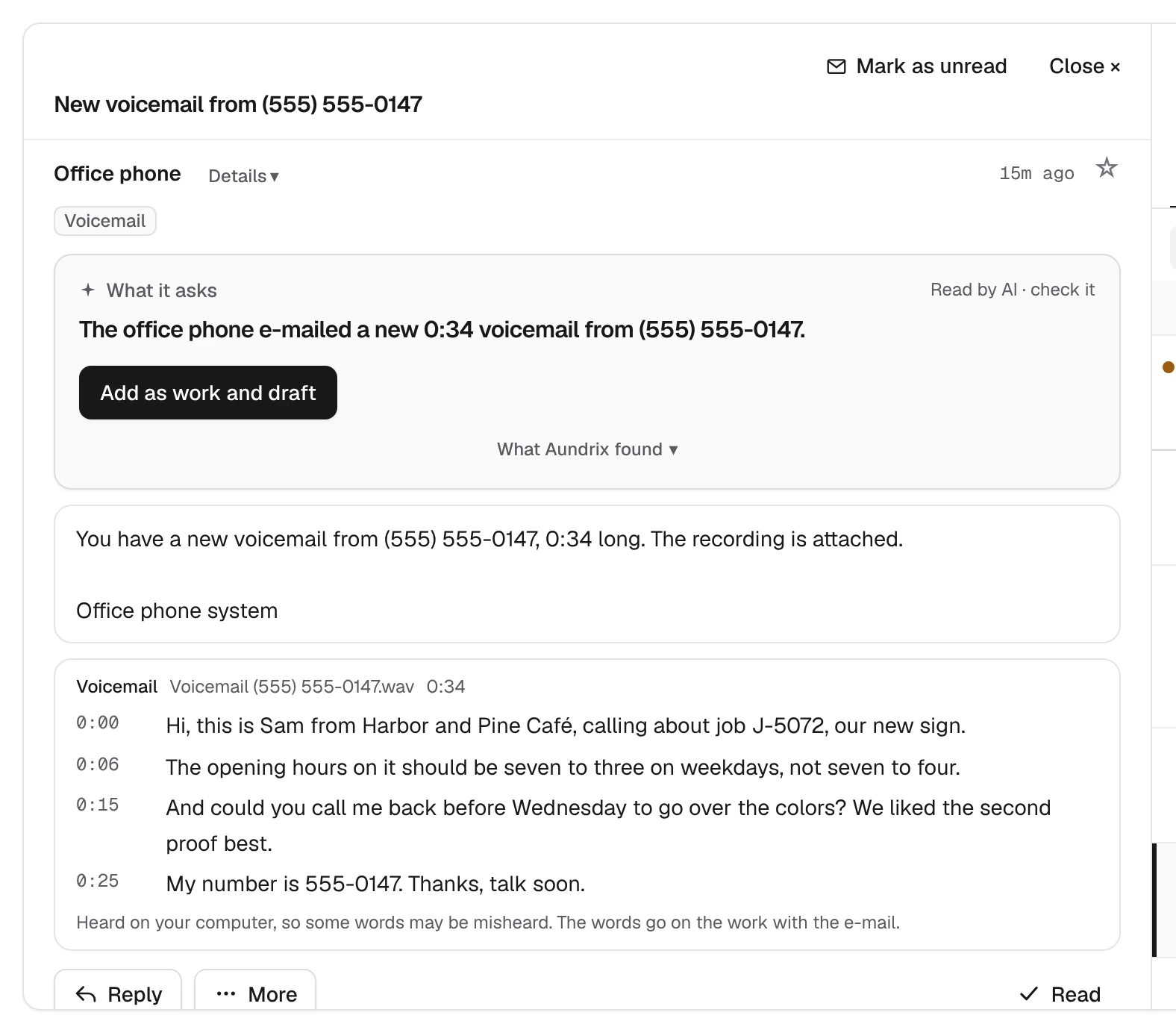
Drop a recorded call, meeting, or voicemail onto a piece of open work, or press Record a call, confirm that everyone on the call knows it is being transcribed, and say whether the call is on this computer or in the room. Aundrix writes down the words on your own computer, each line with its time, and keeps only the words, never the sound. During a call, the words are saved on the work every two minutes, and coworkers see that it is being recorded. When the office phone e-mails a voicemail, opening the e-mail shows what was said, and the words go onto the work when you add it. When you ask, Write notes with AI gives a summary, the main points, and the next steps, from the words alone.

A voicemail's words inside the e-mail that brought it: each line with its time, from a caller asking about job J-5072, with a note that it was heard on your computer and the words go on the work with the e-mail.
Law firms

Motions, stips, and court notices.

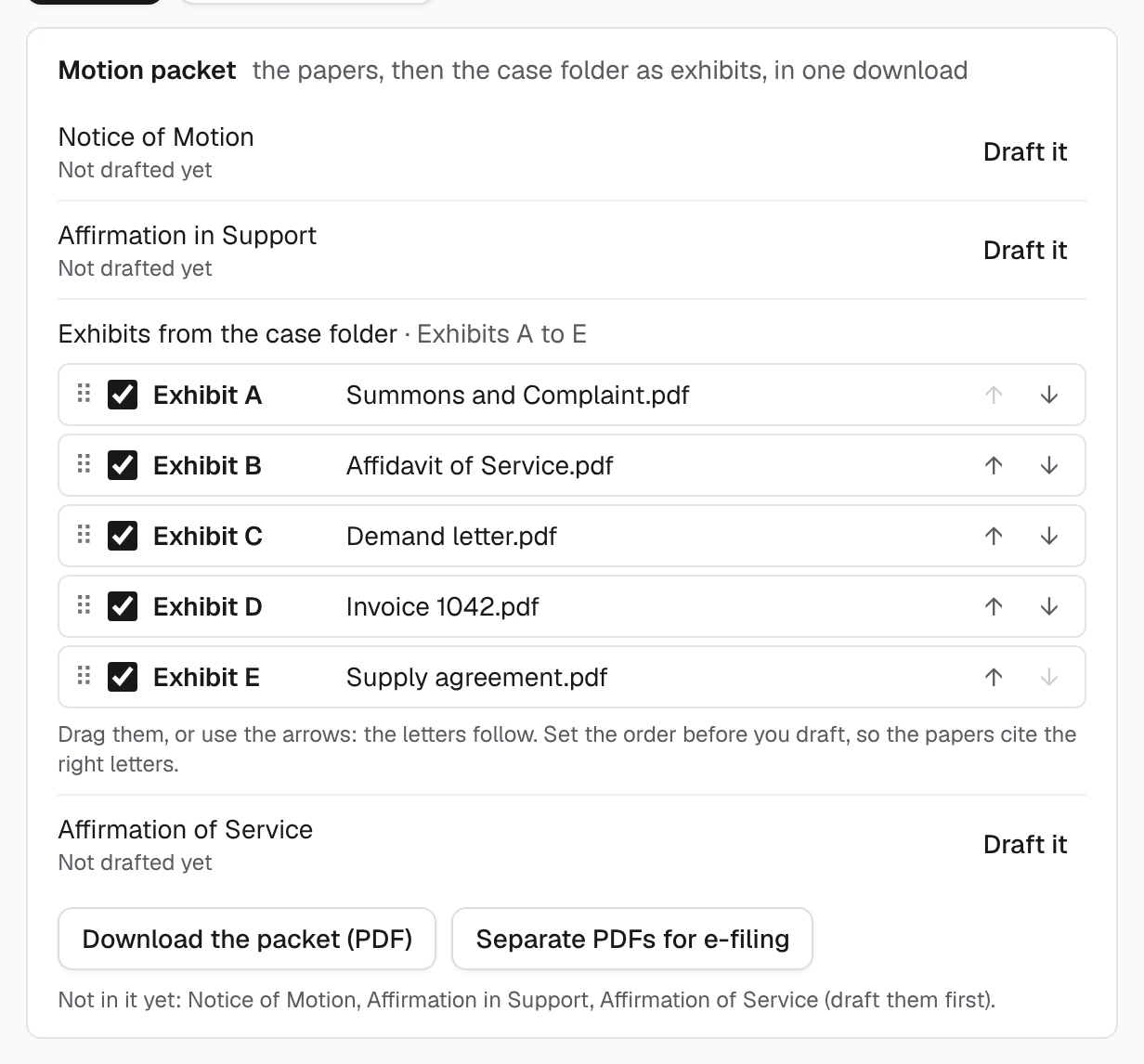
A motion lists the papers your firm saved for it, in filing order: the notice of motion, the papers in support, the case folder's files as lettered exhibits, and the affirmation of service. Drag an exhibit or leave one out, and the letters follow. Each paper is drafted when you ask, with the letters as they stand then, so set the order first. The packet downloads as one PDF with a slip sheet before each exhibit, or as separate PDFs for e-filing. When an e-mail asks for a CTV stip, Aundrix reads the billing spreadsheet attached to it, or a chart in the e-mail, and finds the rows for the provider and the opposing counsel the conversation names. When it cannot tell which counsel and the sheet has several, it offers one stip for each. The counsel's percentage comes from your firm's settlement rate sheet when it is there. When the court e-mails a NYSCEF notice that something was filed, Aundrix looks for the case by its index number or the names in the caption, and asks you when it cannot tell. For an answer with counterclaims, or opposition with a return date, it offers the reply date under the rules. It never signs in to NYSCEF. A law firm's due dates skip court holidays, and a rule can count court days, so a date also moves off a weekend. When an e-mail says the day papers were served, Aundrix offers that day, keeps it on the work, and counts the due date from it. Setup can tick who is an attorney, and then only they can sign off a date.

A motion packet: the notice of motion and the affirmation in support, each with Draft it, then five case-folder files as Exhibits A to E with arrows to reorder them, the affirmation of service, and buttons to download the packet as one PDF or as separate PDFs for e-filing.
Messages

Work together, live.

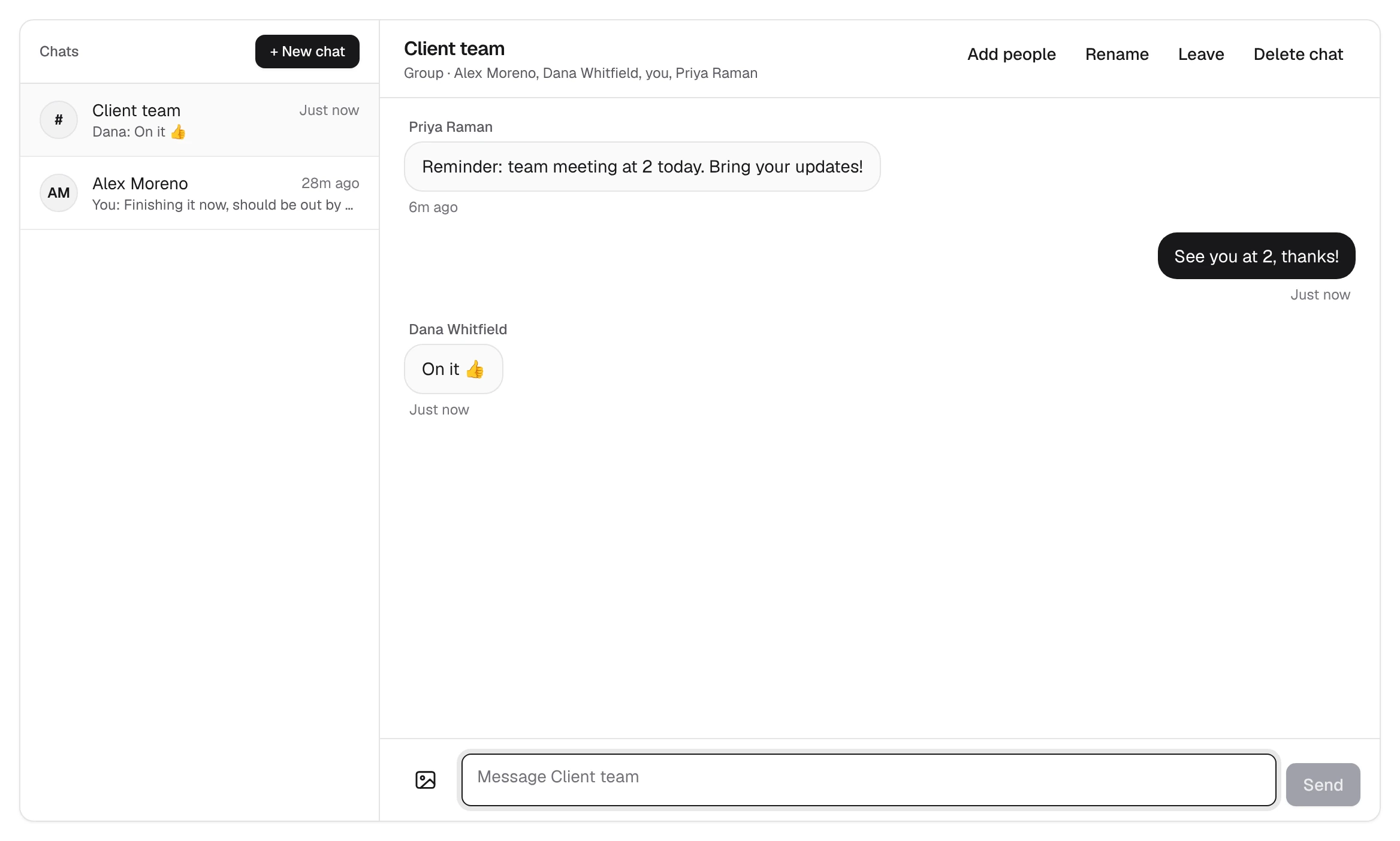
Aundrix tells you when new work comes in, lets you chat with the people in your organization, one-on-one or in groups, and keeps a history of who did what. Only the people in a chat can read it. You can delete a chat from your own Messages, and the others in it keep their copy.

Aundrix messages: a Client team group chat with a reminder about a team meeting, a reply, and a coworker's answer, and the buttons Add people, Rename, Leave, and Delete chat.
Privacy

Private by default.

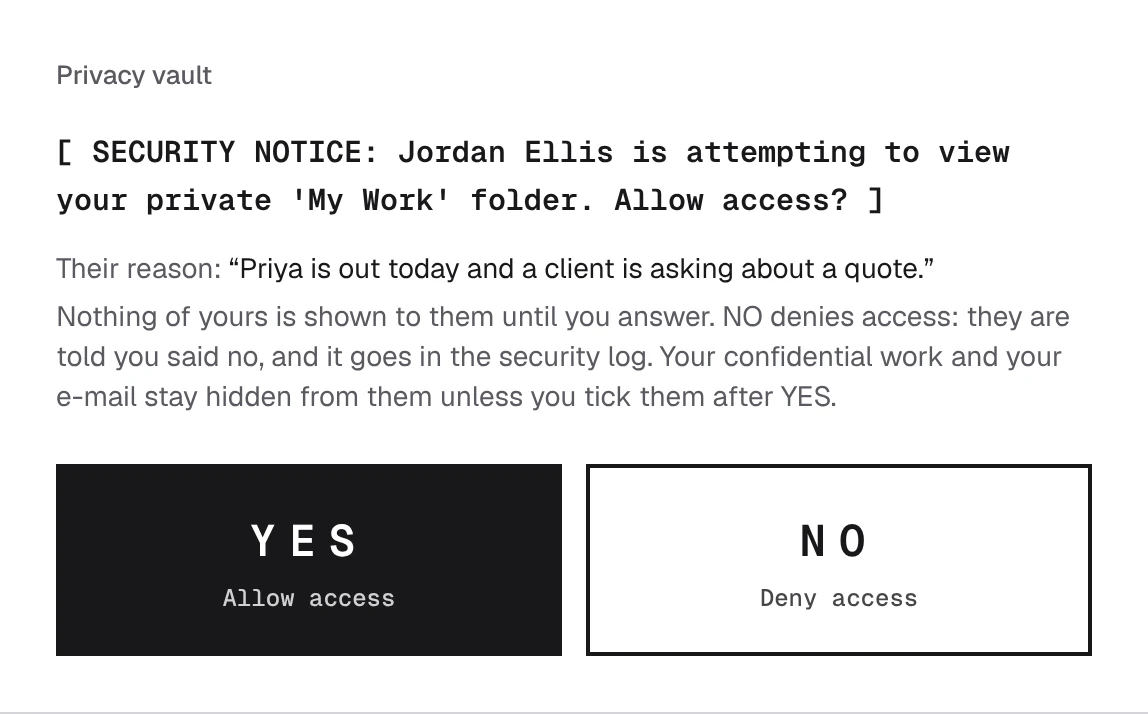
Each person's work stays private until they publish it to everyone's calendar. Anyone who wants to see all of a coworker's work has to ask with a reason, and the owner answers yes or no. A yes lasts only as long as the owner picks. Every refusal is recorded in the security log. Work marked Confidential and the owner's e-mail stay closed even after a yes, unless the owner also ticks a separate box for each. Even then, they can only be read, not changed or answered, and every look at the e-mail is recorded in the security log. Each organization has its own separate workspace, with its own rules and templates.

The privacy vault's security notice: Jordan Ellis is attempting to view your private 'My Work' folder. Allow access? Below it are the reason Jordan gave, a note that confidential work and e-mail stay hidden unless ticked after YES, and the YES and NO buttons.
Sign-in

Sign in with almost any e-mail.

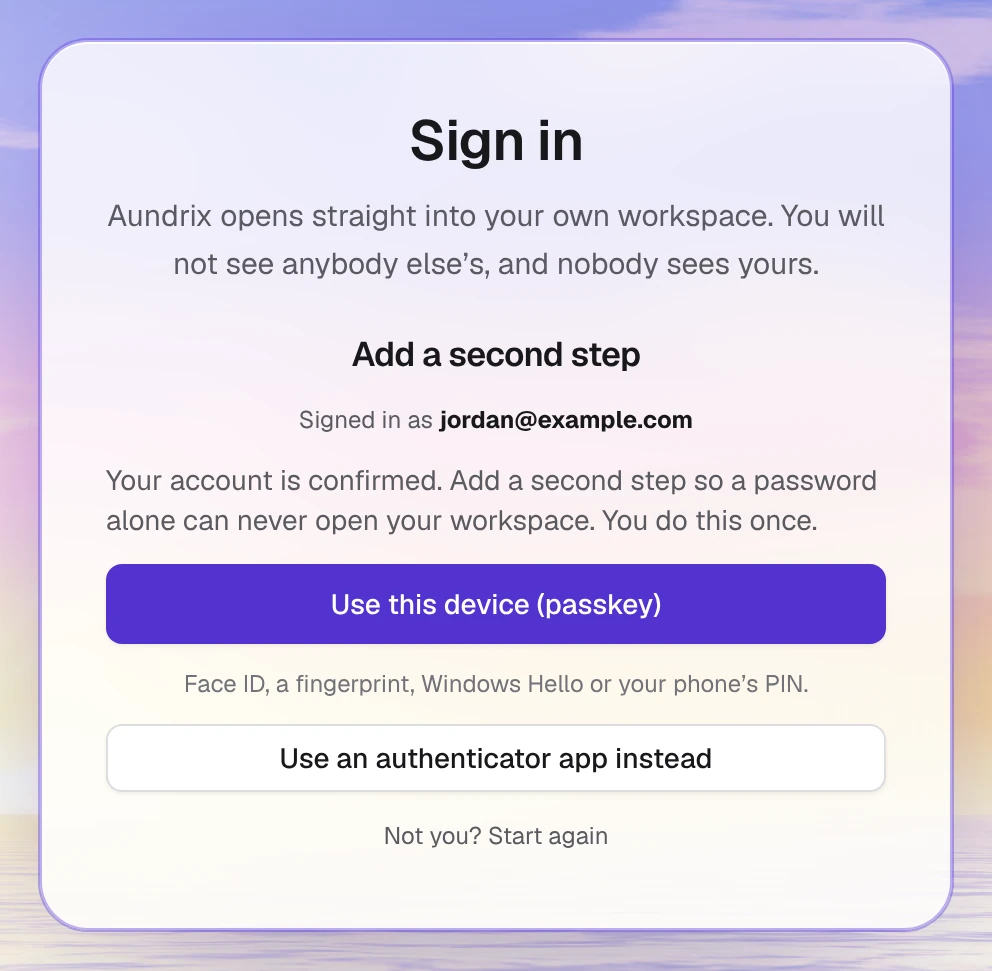
Type your e-mail address on the first page and press Sign in. Aundrix finds whether Google or Microsoft runs that mail and opens their own sign-in, and they check who you are. Most other mail, such as AOL, Yahoo, or iCloud, signs in with an app password from that provider, which proves the mailbox is yours. Then Aundrix asks for a second step, a passkey such as Face ID, a fingerprint, or Windows Hello, or a code from an authenticator app, which you set up once. A Microsoft work account uses Microsoft's own second step instead. Right after you sign in, Google or Microsoft asks whether Aundrix may read your mail, and your mail comes in once you agree. Other mail connects on its own. Tick Stay signed in for 7 days on your own computer, and leave it off on a shared one.

The second step after signing in as a made-up address: Use this device (passkey), for Face ID, a fingerprint, Windows Hello, or a phone's PIN, or Use an authenticator app instead.
Getting started

Bring your whole team in.

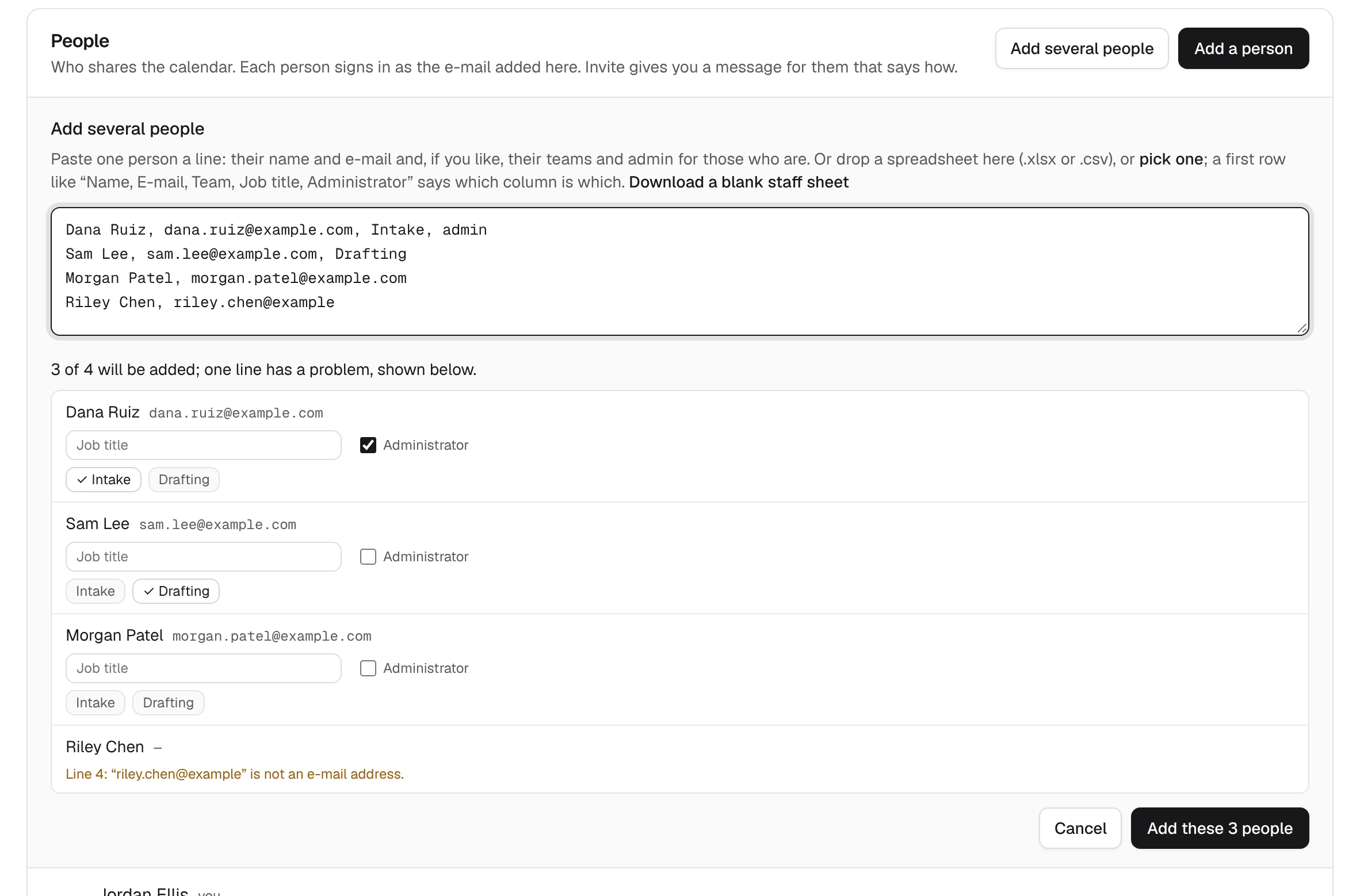
New here? Press Create your workspace on the first page. One person or a small business fills in a short form, and an organization with several people, teams, or rooms to book fills in the full one. When you sign in and your address is in no workspace yet, Aundrix welcomes you and makes one in one tap, with your address already filled in. To bring people in, an administrator opens Setup, then People, and presses Add several people. Paste one person a line, with their name, their e-mail, and their teams if you like, or drop a spreadsheet. Aundrix shows each line back, says plainly what is wrong with any of them, and adds the rest. Each person then gets an invitation that says how they sign in, by their own address. Copy it, or let Aundrix send each one from your own mailbox, after you confirm who gets one. A Help page in the menu answers the everyday questions in a few plain lines, such as adding an appointment, sending an e-mail later, or making an app password.

Add several people in Setup: four made-up people pasted one a line, with 3 of 4 ready to add, one marked Administrator, each with their team ticked, a line whose address is missing its ending marked as not an e-mail address, and the button Add these 3 people.
Backups

Backed up every night.

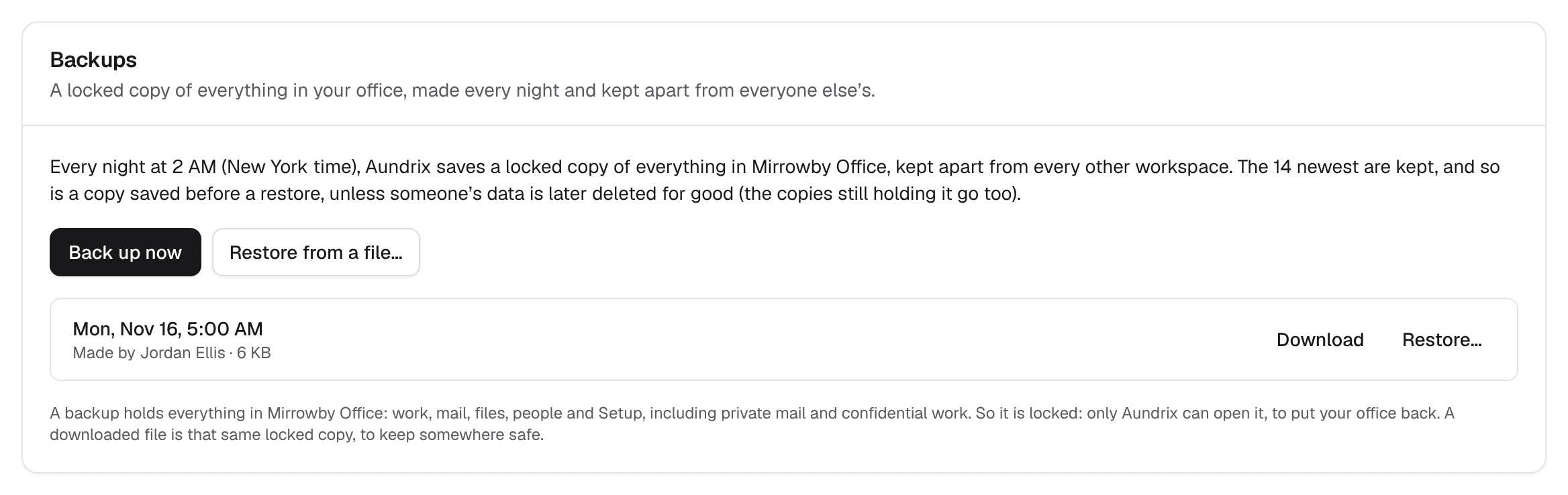
Each organization gets its own locked backup every night, kept apart from every other organization's. In Setup, an administrator sees the backups, can press Back up now, and can download or restore one. A restore saves a copy of how things are first, so it can be undone. Work, mail, cases, skills, and Setup go back to how they were, but mail removed since does not come back, and anything added since stays. People, who has each piece of work, privacy marks, mail connections, and the security log stay as they are now. An administrator can also close a workspace. Aundrix makes a backup first. Then only its administrators can sign in, and only to reopen it, and its mail stops. For 30 days an administrator can reopen it with everything as it was, and after that it is deleted for good, with its backups.

Setup, Backups: a locked copy every night at 2 AM, the 14 newest kept, the Back up now and Restore from a file buttons, and a backup with its date, Download, and Restore.
AI use

AI, with a monthly allowance.

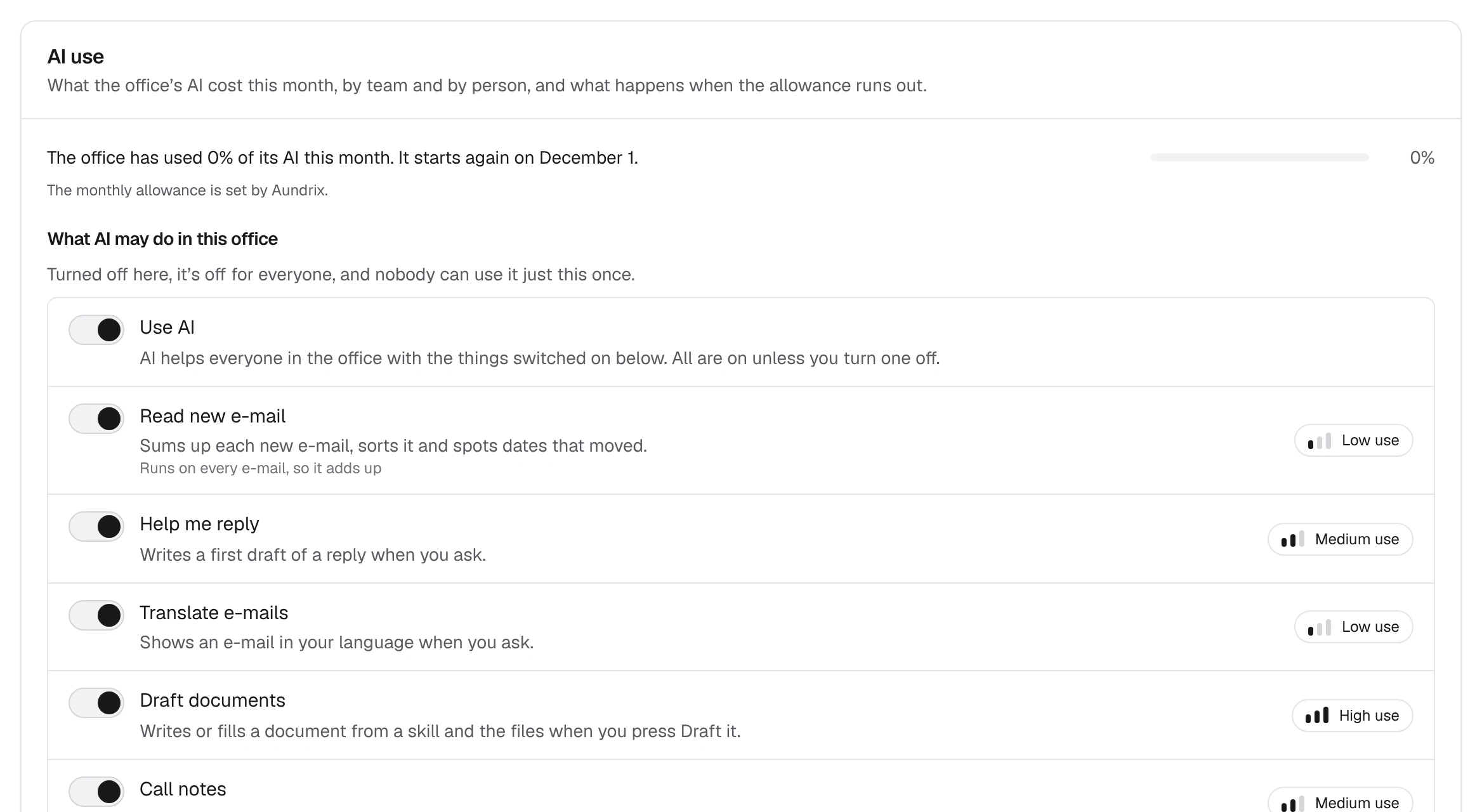
Each organization has a monthly allowance for AI. In Setup, an administrator sees how much each team and each person used this month, can give a team its own monthly limit, and can buy more AI, which Aundrix bills the organization for and which is kept until it is used, month after month. An administrator can also turn on Add automatically when AI runs out, which adds a set amount each time, up to a most they pick for the month. When the allowance and what the organization bought are used up, AI stops until the 1st or until more is bought, and everything else in Aundrix keeps working. A team can also reach its own limit first. Each person sees their own use in Settings, and picks there what they want AI for, one switch for each kind of AI. An administrator can turn any kind of AI off for the whole organization in Setup.

Setup, AI use: how much of the month's AI the office has used, and a switch for each thing AI may do in the office, such as Read new e-mail, Help me reply, Translate e-mails, and Draft documents, each marked low, medium, or high use.
You stay in control

Your assistant.
You decide.

Aundrix is built to work alongside you, not to act without you. It never sends an e-mail on its own. You read each draft, decide, and press Send.

Aundrix does the repetitive parts

  • It reads each new e-mail as it arrives, sorts it, and sums up what it asks for.
  • When you add an e-mail's work, Aundrix works out the due date from your organization's own rules, and you can type a different date.
  • When you ask, it fills your own Word and PDF templates from the e-mail and your notes.
  • It suggests replies from your own e-mail templates, and its AI writes one when you ask.

You make the decisions

  • You read every draft, and you can use it, change it, or ask for another.
  • You decide what goes out. No e-mail goes out until you press Send and confirm.
  • You decide on any e-mail Aundrix isn't sure about. It puts those under Needs a look instead of guessing.
  • You hand work to a colleague or tick it off. Work is never deleted.

Aundrix sorts, sums up, and keeps track of dates. You read, check, and decide. Every screen of the workspace carries a reminder to review the work.

Themes

Make it yours.

Aundrix opens in Stark Platinum by day and Deep Obsidian by night. In Settings, under Appearance, each person can pick another look instead: one of nineteen scenes, eleven light and eight dark, or one of twelve photo themes, six light and six dark. Holiday themes come and go with the calendar: each has a day look and a night look, and you can pick one while its season lasts. Nobody gets a new look without picking it.

Every theme is alive. A scene moves behind your work, with drifting dust, falling snow, fireflies, or fireworks. A photo theme is a picture with a little motion on top, such as twinkling stars or a drifting haze. Each one plays its own song. Press ♪ Listen on any of them to hear it. The clips are the real dashboard, with made-up people and work.

Scenes 19

Photo themes 12

Holidays 12

What we're building

What comes next.

Aundrix is still in development. These are the next three steps.

In developmentStep 1 of 3

Matter workspace

One page for each case, job or project, with its notes, people and checklists. Files come next.

The matter page for a made-up job, Brightline Bakery: who owns it, the next date, open work, and tabs for Overview, Notes, Contacts, Checklists, Work, E-mail, Drafts and History.
PlannedStep 2 of 3

Studio workflows

A firm sets its own steps and who approves what, in plain words, and tests them first.

PlannedStep 3 of 3

Assistant for a matter

Answers from the firm's own records and shows where each answer came from. It only suggests. A person decides.

Recent updates

What's new.

Newest first. Some of these show once a firm turns on the new side menu in Setup.

Update logNewest first

Work with no file number

Work that has no file number now sits under Projects, and one click puts it on a project.

Old e-mail waits 30 days before it is deleted

Clearing old mail from Mail History now hides it for 30 days before it is really deleted.

A new Home

Home has an ask bar, a map of where things are, and Customize Home to show only what you want.

Matter page, contacts and checklists

A matter gets notes, the people on it, and checklists whose steps can wait on each other.

Hand mail on, and choose your alerts

Send an e-mail to a teammate with a note, and pick a daily summary or urgent e-mails.

24 new looks

Twelve photo looks and twelve moving looks, each in light and dark.

Older updates

A moved date asks first

When an e-mail says a date has moved, Home asks you to approve it, change it or keep the old one.

A calmer e-mail screen, and clearer words

An e-mail you open is calmer, the words are easier to read, and when the AI is down, Aundrix says so and reads your mail once it is back.

  • A calmer e-mail screen. When the AI has read an e-mail you open, you now see who sent it, one sentence on what it asks, and one main button, such as Add as work. Press What Aundrix found to see everything else it noticed, or Details for every address it went to.
  • You pick where work goes. Press Add as work, then pick who does it, you or someone else, and whether it shows on the calendar. For work Aundrix drafts, pick Draft now or Draft later. Check the due date, then press Add it. Nothing is added before that.
  • Reply beside the e-mail. On a computer or a tablet, your reply now sits beside the e-mail you are answering, so you can read the e-mail while you write. On a phone, the reply goes under it. The reply box is simpler too, with the Send button first.
  • Mail first on a smaller screen. On a phone, a tablet, or a small laptop, your mail now comes before the calendar on the Dashboard. On a phone, the calendar's Week view lists the days one under the other, with each piece of work written out in full.
  • Easier to read. Small gray print is darker, small labels are ordinary words instead of tiny capital letters, and Text size in Settings now makes the small print bigger too.
  • When the AI is down. Your e-mail still comes in and is sorted without the AI, and a short note in Mail says so. When the AI is back, it reads the e-mail that came in over the last three days. If you press an AI button in the meantime, it tells you plainly that nothing was changed.
  • Add several skills at once. In Setup, under Skills, press Add several skills and add your list of skills, a folder of templates, or both. The AI suggests which template goes with which skill. Nothing is added until you press Add, and Undo, right after, takes it all back. It has its own switch, Read skill lists and folders, in Settings, under AI.
An e-mail open beside the mail list: the sender's name, one sentence saying the bakery wants a quote for six new menu boards by next Thursday, one Add as work button, and What Aundrix found under it. Below the e-mail sit Reply, Reply all, More, and Read.

Mail warnings, court dates, and areas of law

Aundrix now tells you when mail stops coming in, and a law firm starts with skills for its own area of law.

  • Know when mail stops. If your mailbox needs connecting again, or Aundrix has not been able to check it for two hours, a notice says so at the top of every page. Administrators also see these notices for other people's mailboxes, with each person's name.
  • Catching up after reconnecting. If your mailbox stops reaching Aundrix and you connect the same one again within 14 days, Aundrix reads the mail that came in while it was stopped. If you pressed Disconnect yourself, it starts again from the time you connect.
  • Save an e-mail. Open an e-mail, press More, then Save e-mail. The whole e-mail, with its attachments, goes to your computer's downloads as one file, for your case files or your records. Aundrix keeps no copy.
  • Areas of law. A law firm now picks its area of law when it signs up, from criminal defense to wills, trusts, and estates, and starts with skills and templates for it. Many templates use New York forms and say so. An administrator can add another area later in Setup, under Skills. Starter templates are outlines to begin from, not legal advice. An attorney at your firm should read each one before anyone relies on it.
  • Full Aundrix or the Law edition. A law firm signing up also chooses how Aundrix starts: with full e-mail and chat, which is picked to begin with, or as the Law edition, a smaller version for New York litigation firms (see Nov 9). An administrator can change it later.
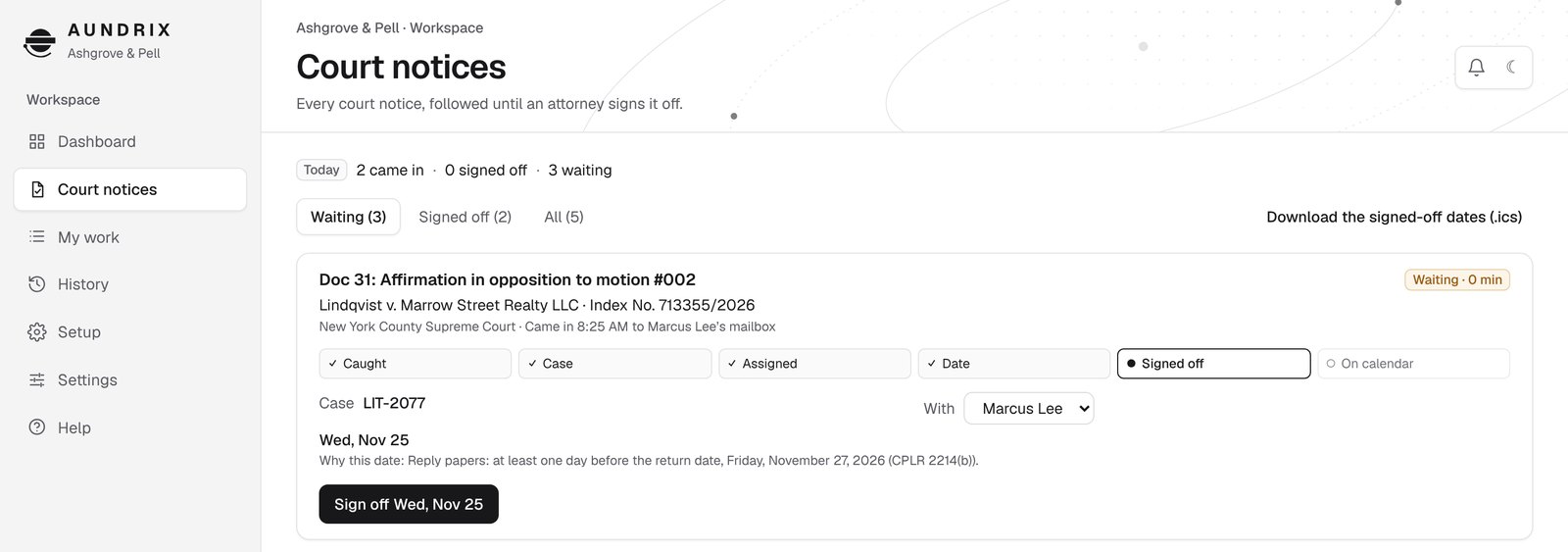
  • Court dates in the court's own words. In the Law edition, when an e-mail from a New York or federal court plainly sets a date, such as for a conference, the Court notices page shows the court's own sentence and offers that date, with the time if the e-mail gives one clearly. A person adds it, and an attorney signs it off.
  • Whole file numbers. A file number with two dashes, such as CV-2026-001234, is now read whole, so two cases that start the same way are no longer filed as one.
  • Confirm it's you. Only an administrator can make someone else one. Before you do, Aundrix now checks it's really you, with your passkey or code, or a sign-in from the last few minutes.

Adding a skill is shorter, and anyone can do it

A skill, a kind of work Aundrix knows, is now quicker to add, and anyone in your office can add one.

  • Anyone can add a skill. Anyone in your office, not only an administrator, can now add a skill for everyone in Setup, and change or remove the ones they added. The rest of Setup stays with administrators.
  • Shorter to add. Give the skill a name and add a document or an e-mail you send for that work. That is enough. Most of the rest, such as when it is due and the words that spot its e-mails, waits under More options.
  • Drag files anywhere. On a computer, drag Word (.docx), PDF, and e-mail files onto the skill's window and let go anywhere on it, not only on the small box for files.
  • Photos of paper. Is the template, or the way you do the work, on paper? On a phone, take a picture of each page first, then press Photo and pick them all at once, up to 10. On a computer, pick photos or a scanned PDF. The AI reads the words and shows them to you to check before anything is saved. It has its own switch, Read photos, in Settings, under AI.
  • Ready-made skills keep drafting. A skill with only an e-mail template now drafts too, and saving a ready-made skill no longer turns its drafting off.
  • Your skills, in view. The Getting started card on the Dashboard says how many skills Aundrix already has for you, with See them to open the list. If you closed the card, press Show the first steps again in Help.
  • Every section on a phone. On a phone, the buttons for every section, from Dashboard to Help, now fit at the top of the screen, so none is hidden off the edge.

The Law edition, mail sorted by what it asks, and notes

Aundrix now comes in a version for New York litigation firms, and three other things changed.

  • The Law edition. Made for New York litigation firms, it gives court e-mail a second check. E-mail from a New York or federal court that reaches a mailbox connected to Aundrix goes on a Court notices page, and Aundrix keeps track of it until an attorney signs it off. Mail that lands in spam, or is marked confidential or private, is not caught. A warning shows when a notice waits too long or a mailbox stops working. It is off until an administrator turns it on in Setup, under Court notices.
  • Dates on your own calendar. In the Law edition, each person can make a calendar link that puts signed-off dates on their Outlook, Google, or iPhone calendar. It goes one way, from Aundrix to the calendar, and updates every few hours.
  • What it leaves out. The Law edition has no team chat, music, or other themes, and it does not send e-mail or draft replies, so people keep replying from Outlook or Gmail as they do now.
  • Mail sorted by what it asks. Turn on Sort my mail by what it asks in Settings, under AI, and new e-mail goes into tabs: Needs a reply, Meetings, Bills, FYI (just so you know), and Newsletters. Anything that is work for you stays in Primary, your main mail tab. It is off until you turn it on, and it needs the AI to read your new e-mail.
  • Notes on calendar work. Open your own work on the calendar, or work nobody has yet, to add a note or change it later. A small pencil mark (✎) shows which work has one, and when Aundrix drafts that work, it reads the note too.
  • Music, and how to turn it off. Inside Aundrix, music stays off until you turn it on in Settings, under Sound. On this website and the sign-in page it starts by itself (this changed on Nov 21; on a phone it starts at your first tap), and the music-note (♪) switch at the top turns it off. Once you turn it off, it stays off in that browser until you turn it on again. The trailer is silent until you press Watch the trailer or turn its sound on.
The Law edition's Court notices page for a made-up firm: an affirmation in opposition, with its case and the attorney it is with, the steps Caught, Case, Assigned, and Date ticked, the date it works out and why, and a Sign off button.

Sign up from here, set-up codes, and Undo

Getting in is easier, and work is harder to lose.

  • Sign up from this page. Press Sign up at the top of this page, for your firm or just you. While Aundrix is in preview, signing up needs an access key: write to support@aundrix.com for one.
  • Set-up codes for new staff. When an administrator adds someone, the invitation now walks them through each step of signing in. The one-time set-up code is not in the invitation: the administrator gives it to them by text or in person.
  • Delete, and Undo. You can now delete a piece of unfinished work that is yours or that you added, and administrators can delete any. It waits in History, under Deleted work, where Put back returns it. After you tick work off, Undo shows for 10 seconds.
  • The e-mail behind handed work. When someone hands you a piece of work, you can now read the e-mail it came in. Only the person it came to can reply to it.
  • The day the e-mail asks for. Add as work now warns you when a due date is later than the day the e-mail asks for, and one tap uses that day.
  • Signed out when you close the browser. If you leave Stay signed in for 7 days unticked, closing the browser now signs you out.
  • Plainer words outside law. Offices that are not law firms now see words that fit their own work in most places, such as Category instead of Side. The property management starter set also has showings, final walkthroughs, closings, and bills to pay.

Pictures in team chat, and safer sign-in

Team chat takes pictures, and the checks that keep the wrong people out are stricter.

  • Pictures in team chat. Send pictures in Messages from your phone or computer: press the picture button, paste one, or drag it in. Tap a picture to see it large.
  • Is this your workspace? When an administrator adds you to a workspace, the first time you sign in, Aundrix may ask whether it is yours. It shows who added you, and you press Join with the workspace's name, or Not mine.
  • Sign in, then sign up. To create a new workspace, you first sign in with the e-mail address you will use, so nobody can make one with an address that is not theirs.
  • Two to close. When a workspace has more than one administrator, closing it takes two of them: one asks, and another agrees within 7 days.
  • Erase someone who left. An administrator can erase a removed person's information, including the copies of their e-mail kept in Aundrix, from Setup, under People. Their own Gmail or Outlook mailbox is not touched. If there is another administrator, they approve it first, and if you are the only one, Aundrix first checks it's you. Nothing is erased for 30 days, and any administrator can cancel it until then.
  • Weekdays only. New work from a ready-made skill you have not changed is no longer due on a Saturday or a Sunday: it moves to the next working day. Work already on the calendar keeps its dates.

A switch for each thing the AI does

You decide what the AI does for you, one thing at a time.

  • One switch each. In Settings, under AI, there is one main Use AI switch, and a separate switch for each thing the AI does, such as reading new e-mail, helping you reply, translating, drafting documents, and writing notes from calls. They all start on, except Sort my mail by what it asks, added on Nov 9, which stays off until you turn it on.
  • Reading is its own switch. Turning off reading new e-mail stops the AI from reading each new e-mail as it comes in, and Aundrix sorts it without the AI. Helping you reply, translating, and the others can still use an e-mail while their own switches are on.
  • Just this once. When you have turned one off, a button that uses it, such as help with a reply, first asks Use AI just this once?
  • For the whole office. In Setup, under AI use, an administrator can turn any of them off for everyone. Then nobody can use it, not even just this once.
  • How much it uses. Each one is marked Low use, Medium use, or High use. In your own Settings, it also says what part of your AI use this month went to it.

A calendar like your phone's, and mail on one line

From Oct 28 to Oct 30, we ran a made-up firm through Aundrix, fixed what got in the way, and made a few more changes.

  • A calendar like your phone's. Tap a date to open that day hour by hour, with the week across the top. The calendar now has Day, Week, Month, and List views, and opens on the one you last picked. On a phone, Month looks like a real calendar.
  • Mail on one line. Press One line above the mail list to show each e-mail on a single line, like a classic inbox. Aundrix remembers your choice.
  • New mail in seconds. While Aundrix is open on your screen, new e-mail from Gmail or Outlook shows up within seconds, with one chime, even before the AI has read it. Other e-mail, such as AOL or Yahoo, shows up within about a minute.
  • Mail stays until the work is done. An e-mail you add as work now stays in Primary, marked Added as work, until its work is done. Then it moves to History by itself.
  • Connect mail in Settings. Connecting, reconnecting, and disconnecting a mailbox moved out of Mail and into one place: Settings, under E-mail accounts. Signing in with Google or Microsoft still offers to connect that mailbox right away.
  • Draft it and keep working. When you open a piece of work that Aundrix drafts, press Draft it in My work and carry on while Aundrix drafts. My work shows how far along it is.
  • File numbers are optional. Give a piece of work a title instead. If your office does not use file numbers, an administrator can turn them off in Setup.
  • Ready-made skills for more offices. New workspaces can now also start with skills and templates for accounting, medical billing and coding, and insurance.
  • AI, labeled. When you open an e-mail, its summary says it was read by AI, and a suggested reply says it was written by AI. Before your mail is first connected, Aundrix tells you how the AI reads it and where to turn that off.

A new menu, an Enterprise plan, and how Aundrix works, step by step

Everything to know before you sign in is now one tap away, here and on Aundrix's first page.

  • A menu at the top. Billing, Updates, How it works, and Support now sit at the top of this page and of Aundrix's first page. On a phone, press Menu.
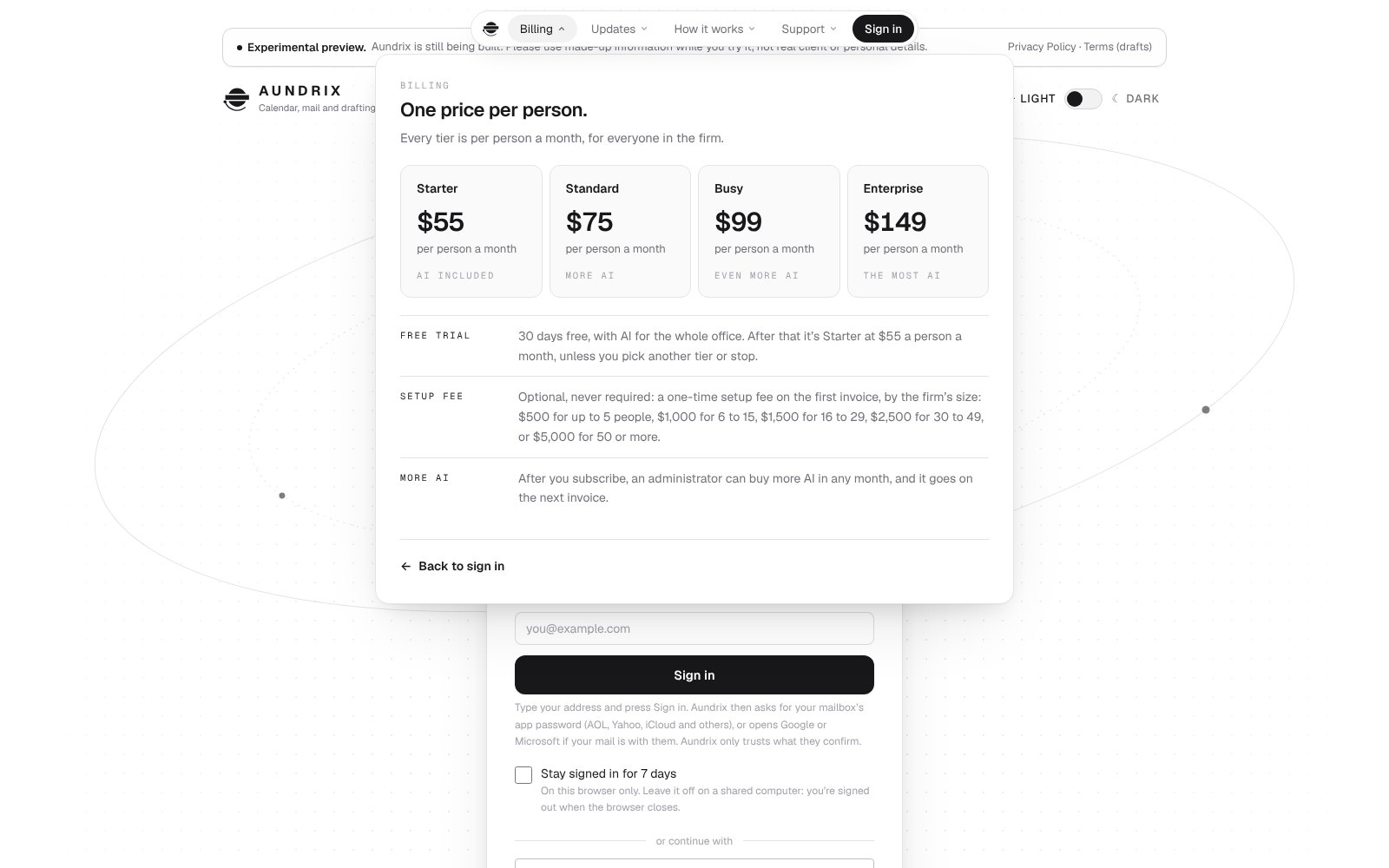
  • Enterprise. A fourth plan, with the most AI. Every firm still starts with 30 days free. (Prices changed on Nov 4: see Billing in the menu for today's.)
  • Setup help, only if you want it. A one-time fee by the firm's size, from $500 for up to 5 people to $5,000 for 50 or more. It is never required: tick Add setup help when you create your workspace, or leave it off.
  • Write to a person. Questions go to support@aundrix.com, which is also under Support in the menu.
  • How it works, step by step. A new page walks through Aundrix on the real screens, from connecting your e-mail to pressing Send. Open it from How it works in the menu, or from the bottom of Help inside Aundrix.
  • Meet Aundrix, in a minute. The trailer at the top of this page follows one e-mail from your inbox to your calendar, with every deadline in view and AI built in, down to filling in your own letters. The 1:41 walkthrough is now on How it works.
Aundrix's first page with the new menu open on Billing: Starter $55, Standard $75, Busy $99, and Enterprise $149 per person a month, with the free trial and what it turns into, the optional setup fee by firm size, and More AI.

Unread mail, big inboxes, and documents that change for each case

Mail now behaves like the mail app you know, and drafting learns from your finished work.

  • Read and unread. New mail is bold, and each mail tab counts what is unread. Mark an e-mail as unread from the open e-mail, with a right-click, or on a phone with a swipe to the right, or select many at once. Your marks are your own and stay in Aundrix, so your mailbox does not change.
  • Quick with thousands of e-mails. Aundrix stays smooth with a big inbox. It shows the newest 500, with Show older e-mails for more, and counts such as Needs a look stay right however many there are. Spam no longer pushes real mail out of view.
  • Say what changes in a document. When a finished document from earlier work goes into a skill, Aundrix points out the details that look like they change from case to case, such as names, dates, amounts, and file numbers. Tick the ones that change, or say it in your own words, and the next draft puts the new case's details in their place. Anything it cannot find stays yellow for you to fill in.
An e-mail open beside the mail list, with Mark as unread at the top, new e-mails in bold, and the one just read in plain type.

Aundrix in your language, and a simpler first page

Aundrix now comes in five more languages, and getting started takes one step less.

  • Aundrix in your language. In Settings, under Language, pick Spanish, Chinese (Simplified), Korean, Haitian Creole, or Russian, and Aundrix's menus and main pages change to it. The first page has the same picker. E-mails stay as they were written.
  • A simpler first page. One box for your e-mail address and the Google and Microsoft buttons, with nothing to pick first. Personal Google and Microsoft accounts sign in the same way.
  • Start in one tap. If your address is in no workspace yet, Aundrix welcomes you and offers Create your workspace, with your address already filled in, or a way on if your firm already uses Aundrix.
  • Your organization's details, ready. In Setup, the figures that drafts and e-mails fill in now offer your organization's phone, e-mail, and address before any are saved.
  • Finished work, all of it. Finished work without a file number now shows in the Finished tab too.

Easier to start, for a whole firm or just you

We set up Aundrix from scratch twice, once as a firm of 20 and once as a one-person business, and fixed what got in the way.

  • Create your workspace from the first page. Press New here? Create your workspace. A small business or one person gets a short form, and a firm the full one.
  • Add several people at once. Paste a list or drop a spreadsheet in Setup, and Aundrix adds everyone whose line is right. Each person gets an invitation that says how they sign in.
  • A Help page. Short, plain answers for the everyday things, in the menu next to Settings.
  • Plain words for every kind of business. Work that Aundrix does not draft needs no file number, repeating work can end, and on a phone the calendar is a list of days.
  • Court days for law firms. Due dates skip court holidays, a rule can count court days, and Aundrix counts from the day papers were served. Once Setup ticks who is an attorney, only they sign off a date.
  • Smoother mail. The Up and Down keys move through mail on a computer, Spam and Not spam sort out junk, and an e-mail that names a day and a time offers it for the calendar.
  • Safer sign-in. Too many wrong passwords pause only the place they came from, so nobody can lock you out by guessing.

Any e-mail, and a reading pane

Aundrix now works with the mail people already have, wherever it lives.

  • Sign in with almost any e-mail. Type your address on the first page and press Sign in. Aundrix opens Google or Microsoft for you, and most other mail, such as AOL, Yahoo, or iCloud, signs in with an app password from its provider. Microsoft accounts for home, such as Outlook.com and Hotmail, sign in too, under Individual.
  • Connect other e-mail. Next to Gmail and Outlook, the Mail panel connects most other mailboxes, and Aundrix finds their settings itself.
  • Read beside the list. On a computer, an e-mail opens next to your inbox, like Outlook. On a phone it opens full screen.
  • Close a workspace. An administrator can close a workspace. Aundrix backs it up first, it can be reopened for 30 days, and then it is deleted for good.

New e-mail, Send later, backups, and AI use

Aundrix moved a long way toward being the only mail app an office needs.

  • New e-mail. Write new e-mail from Aundrix, from your own mailbox, with CC, BCC, a priority, and files from a case. A Sent tab lists what you sent, and you can add mail tabs of your own.
  • Send later. Pick a day and a time, and Aundrix sends the e-mail from your own mailbox then. Change it or cancel it until it goes.
  • Bigger files. With Outlook, press Allow bigger files once, and an e-mail can carry up to 25 MB of files.
  • A second step. After Google, a personal Microsoft account, or other e-mail, Aundrix asks for a passkey or an authenticator code, so a password alone can never open a workspace.
  • Stay signed in. Tick a box to stay signed in for 7 days on your own computer. In Setup, an administrator can sign a person out of every device where they stay signed in.
  • Backups. Each organization gets its own locked backup every night, and an administrator can restore one.
  • AI use. Each organization has a monthly AI allowance. Administrators see the use by team and by person, set team limits, and can buy more.
  • Drafts you can watch. A draft being written shows its steps and a timer, and closing the work keeps the draft while that browser tab stays open.

Calls saved as they go, and fixes from two practice runs

We ran two full practice runs today with made-up work, one for a single person and one for a made-up firm of 30 people in 6 teams. Here is what changed.

  • Calls saved as they go. While you record a call, the words are saved on the work every two minutes, so a closed page keeps the words up to the last save.
  • Smoother replies. Your e-mail templates now fill in your firm's own figures and the signer's name, and Aundrix warns you about any blank still left before you send.
  • Easier sign-in. When you sign in with Google and your e-mail address belongs to two or more workspaces, Aundrix asks which one to open.
  • Buttons that work. We pressed the buttons on every screen, on computers and phones, and fixed the ones that did nothing or showed an error.

Lists, motion packets, stips, and court notices

Four more things went in today. The last three are for law firms.

  • Add from a list. Press + Add and drop a list of cases in its form, and each file number on it becomes its own piece of work. Its due dates go in only if you choose them.
  • Motion packets. A motion's papers and its exhibits, lettered from the case folder, download together as one PDF or as separate PDFs for e-filing.
  • Stips from e-mail. For a CTV stip, Aundrix reads the billing spreadsheet or chart that comes with the request and finds the rows for the provider and the opposing counsel the conversation names.
  • Court notices. A NYSCEF e-mail that something was filed goes with its case when Aundrix can tell which one it is. For an answer with counterclaims, or opposition with a return date, the reply date is offered and never put in on its own.

Recordings, team views, and a lot more

Here is everything that went in since the last update. The screens on this page show it too.

  • Recordings. Drop a recorded call, meeting, or voicemail onto a piece of work, or record a call as it happens, and Aundrix writes down the words on your own computer. Voicemails that arrive by e-mail show their words in the e-mail. Notes by AI come only when you ask.
  • Your team first. With teams set up, each person on a team opens on their own work, their teams' work, and the whole organization's work, and anyone can look at another team's calendar. Another team's confidential work stays hidden unless its person lets you see it. People join their own teams, and a team can add its own skills.
  • A date may have moved. When Aundrix's AI reads a later e-mail that says a date on your open work has moved, Aundrix asks you, with the e-mail's own words, and nothing moves until you press Change.
  • Add to My work. Every e-mail can go to your own list as well as the calendar. My work has a search box, pins, and a note on each row saying where it shows.
  • Confidential meeting. A switch on the form that adds the work replaces the Confidential tab. You choose whether coworkers see its time.
  • AI and your e-mail. Each person can turn off Let AI read my e-mail in Settings. E-mails can be translated into the language each person picks, from 37 languages.
  • Your own e-mail templates. Each skill can list words that spot its e-mails, and Aundrix offers that skill's e-mail template as the start of your reply.
  • Drafting. Choose to draft new work from an e-mail now or later. When Aundrix fills your own Word or PDF template, it marks any value whose words it cannot find in the e-mail, the files, or your notes as “check this.”
  • Sharing. Ask to see all of a coworker's work. When they say yes, they can also let you read their confidential work and their e-mail, without changing anything.
  • Hand-overs and chats. Work handed to you shows in the bell until you open it, with a chime if Aundrix is open, and History keeps a line for each hand-over. You can delete a chat from your own Messages.
  • Sign in with Google. Invited guests can now sign in to the online preview with Google.

Cyber City, by night and by day

Two new scenes join the themes, so there are sixteen now. Cyber City is a neon skyline at night, with lit windows, glowing signs, and light sky traffic. Its song is “Neon Noir,” a slow, rainy-night groove.

Cyber City Day is the same city in candy colors, with pink and teal glass towers, a sky tram, and air taxis. Its song is “Sky Tram,” a sunny city pop tune. Both are in the Themes section, where you can press ♪ Listen to hear them.

Aundrix is online, by invitation

Aundrix now runs online as a private preview. Only invited guests can open it, and it is not open for sign-ups yet.

The preview has teams, room booking, and every theme. A banner at the top marks it as an experimental preview.

Every theme, on this page

A new Themes section shows every scene and all twelve holiday themes, by day and by night, moving on the real dashboard. Press ♪ Listen on any of them to hear its song.

Book a room

An organization can now list its rooms, such as a conference room or a quiet room, and anyone in it can book one from the calendar: pick the room, its number, the day, and the time. The booking shows on everyone's calendar, and a room is never booked twice for the same time. A new organization can add its rooms when it signs up, or later in Setup.

Holiday themes, and fresh screens on this page

Aundrix now has holiday themes for twelve holidays through the year, from New Year's to Kwanzaa. Each one has a day look and a night look, a moving scene, and its own song. You can pick one in Settings, under Appearance, while its season lasts, from a few weeks before the holiday until it is over. When the season ends, your usual themes come back, and nobody gets a holiday theme without picking it. Halloween is in season now.

The screens on this page now show the app as it is today: the calendar picker, the Confidential tab, the Finished tab, your own Word templates, and a new section on teams.

Confidential mail, Microsoft sign-in, templates, and teams

Here is everything that went in tonight.

  • Confidential. Mark an e-mail Confidential and it moves to its own tab. You can still put it on the calendar, and coworkers see at most “Confidential,” whose it is, and the day.
  • Set times. Work on the calendar can now have a set time.
  • Microsoft and Outlook. You can sign in with a Microsoft work account, and Aundrix reads and replies from Outlook as well as Gmail. When an e-mail asks for replies to go to a different address, Aundrix asks you who gets the reply.
  • Starter templates. A new organization can start with templates for its kind of work, such as client services, no-fault, immigration, or property management, to change as it likes. For a law organization, Aundrix notes that an attorney should read each one before anyone relies on it.
  • Your own templates. Drafts can be filled from your own Word or PDF templates.
  • Finished. A new tab in My work lists work that is all done, so you can look it up and pick it up again.
  • Calendar picker. The calendar can show everyone's work, your own, or one person's published work.
  • More reliable. Every new e-mail gets read, and a folder you drop in stays with the work it belongs to. Aundrix also says which files have no text to read, such as scans, and why.
  • Softer music. The music on the sign-in page and on this page now fades in gently instead of starting loud.
  • Teams. One organization can now have teams, such as Intake or Drafting, each with its own calendar and work. The General view of everything opens first. Add, rename, or remove teams in Setup, and choose which teams each skill is for. One person can be on several teams.

A calmer, simpler Aundrix

Aundrix now shows less at once, with the same look. The dashboard fits on one screen. The mail is an inbox you can search, a conversation is one row, and e-mails open in a reader like a phone's. My work has tabs for your own work and everyone's, and each kind of work is now one skill with its own documents and e-mails.

The trailer is out

The first sneak peek showed the real screens and had its own music.

Real sign-in, a real inbox, any language

Google sign-in works, and Aundrix now reads a connected Gmail inbox in a test workspace with made-up people. It notes the language of each e-mail, translates on request, and suggests replies in the sender's language. Replies go out only after you press Send and confirm.

Themes and sounds

Aundrix now has eight light and eight dark themes, each with its own music. New mail, finished work, and deadline alerts each have their own sound and volume.

The look is set

The design is final: Stark Platinum by day, Deep Obsidian by night, the Split Core logo, and the orbit. The privacy vault is in too, so nobody sees your work unless you say yes.

First build

The first build has one shared core, and every organization gets its own separate workspace that no other organization can reach.