From inbox to orbit, step by step.
Aundrix reads your team's e-mail, helps put each deadline on the calendar, and drafts from your own templates when you ask. You read, check, and decide. Here is a day with Aundrix, from setting up to pressing Send.
-
Set up your firm.
Press Create your workspace on the first page. A firm fills in the full form, and one person or a small business fills in a short one. Start with 30 days free, or pick a tier and subscribe. If you would like help setting up, tick Add setup help. It is optional.
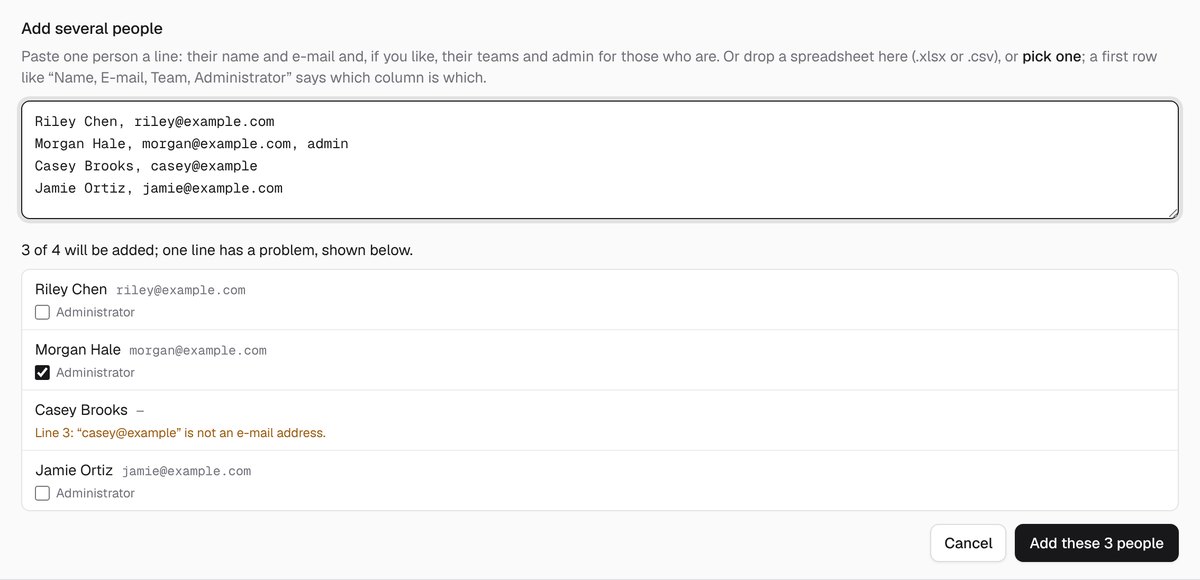
Then an administrator opens Setup, then People, and presses Add several people. Paste one person a line, with their name, their e-mail, and their teams if you like, or drop a spreadsheet. Aundrix shows each line back, says plainly what is wrong with any of them, and adds the rest. Each person gets an invitation that says how they sign in.
-
Connect your e-mail.
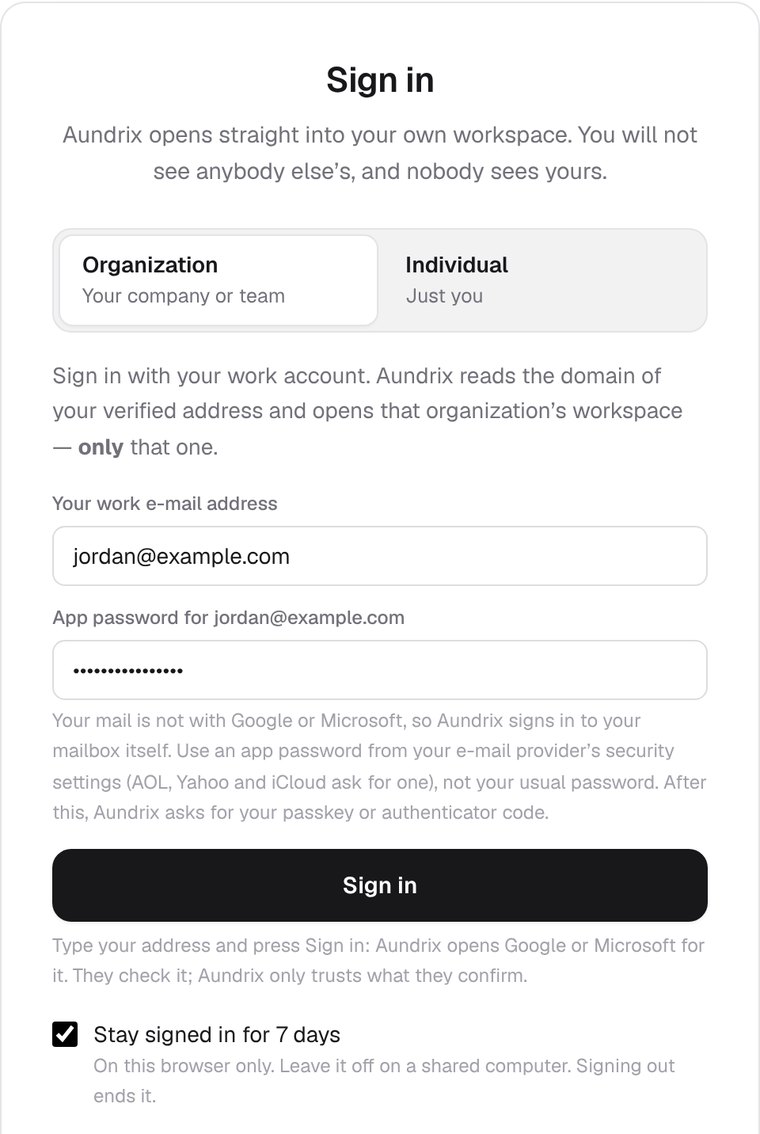
Each person signs in with their own address. Google and Microsoft, for work or for home, sign in the way you already know. Most other e-mail, such as AOL, Yahoo, or iCloud, signs in with an app password from the provider's security settings.
A second step keeps the account safe: a passkey, such as Face ID, a fingerprint, or Windows Hello, or an authenticator app. From then on, new mail shows up on its own.
-
Aundrix reads each e-mail.
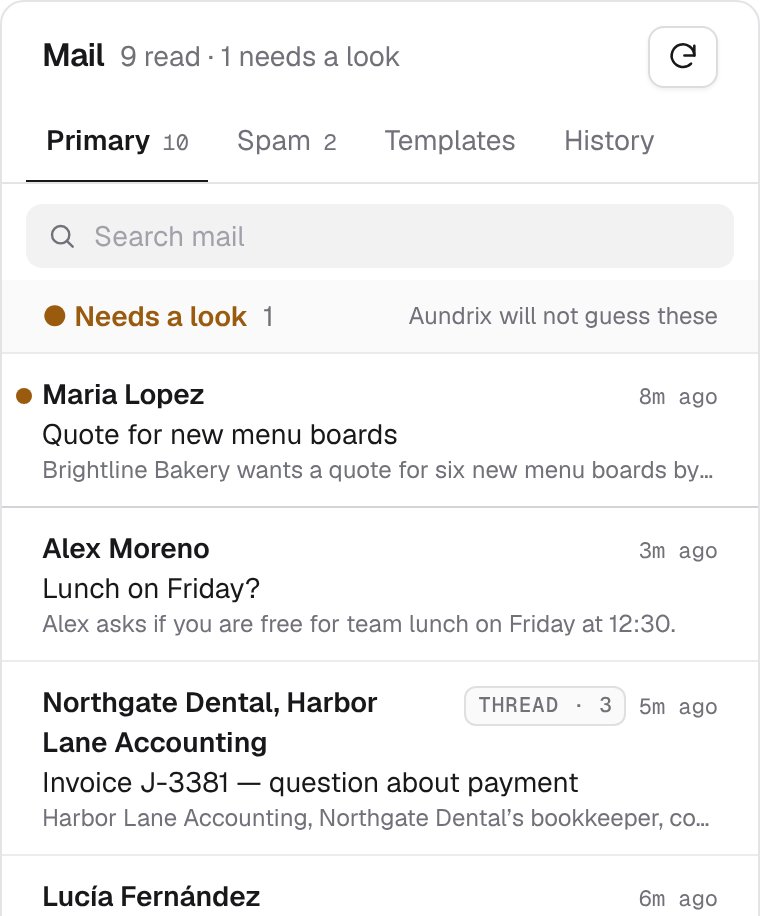
As each e-mail comes in, Aundrix's AI reads it, sorts it, and writes a one-line summary of what it asks for, in English, whatever language it came in.
- When it is sure, the e-mail is sorted as the kind of work it is, ready for you to add to the calendar.
- When it is not sure, it does not guess. The e-mail goes under Needs a look, and a person decides.
- A conversation is one row, and Search looks through all the mail still in your inbox.
- Anyone can turn off Let AI read my e-mail in Settings. Aundrix then sorts their mail by its own rules, without AI.
-
Deadlines go on the calendar.
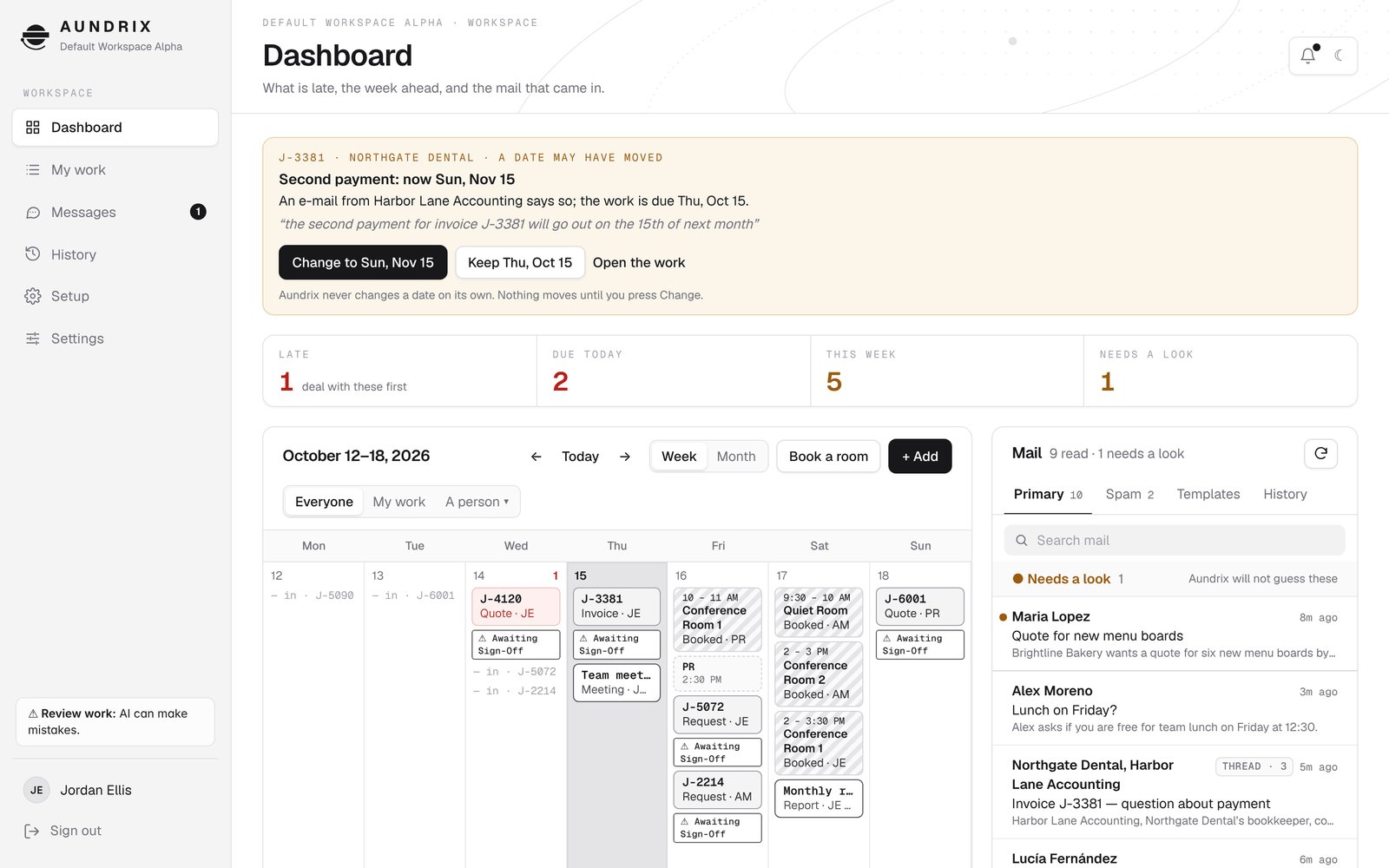
Every e-mail offers Add to calendar and Add to My work. When an e-mail asks for its work by a certain day, Aundrix offers that date. When you add the work, it works out the due date from your firm's own rules, and you can type a different one. It never puts a date in on its own.
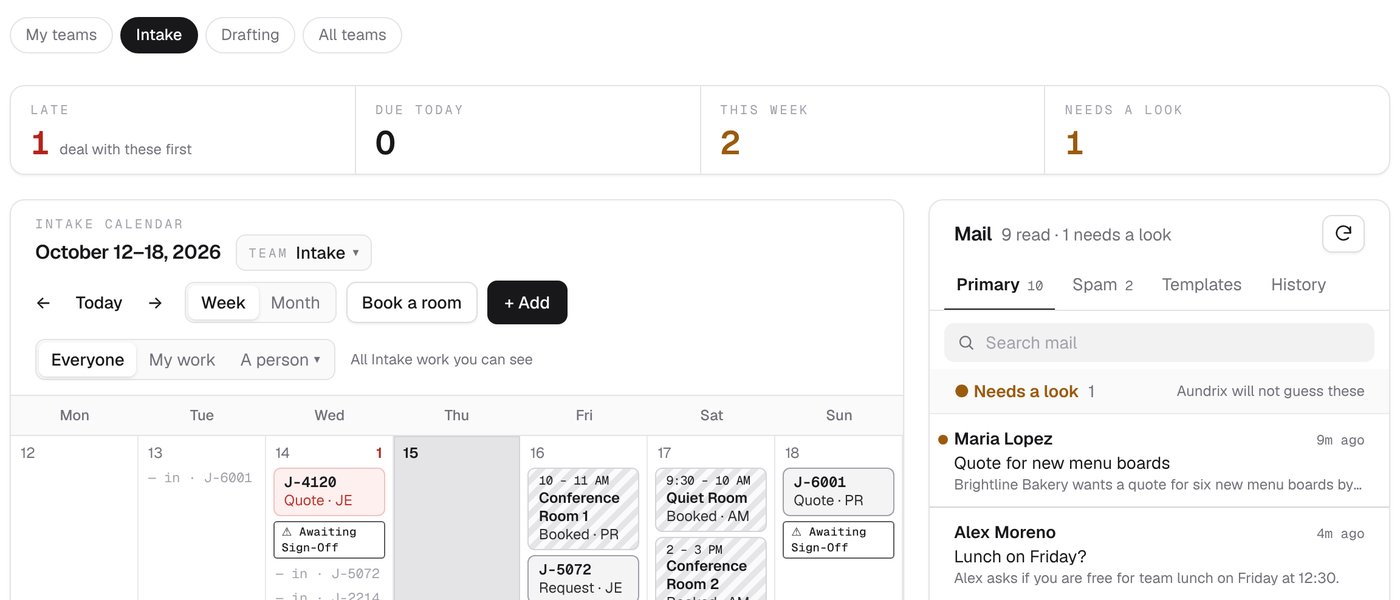
The dashboard shows how much of your work is late, due today, and due this week, how many e-mails need a look, and the calendar beside the mail. If a later e-mail says a date has moved, it shows A date may have moved, with the e-mail's own words. Press Change to use the new date, or Keep the old one. Aundrix never changes a date on its own.
-
You press Send.
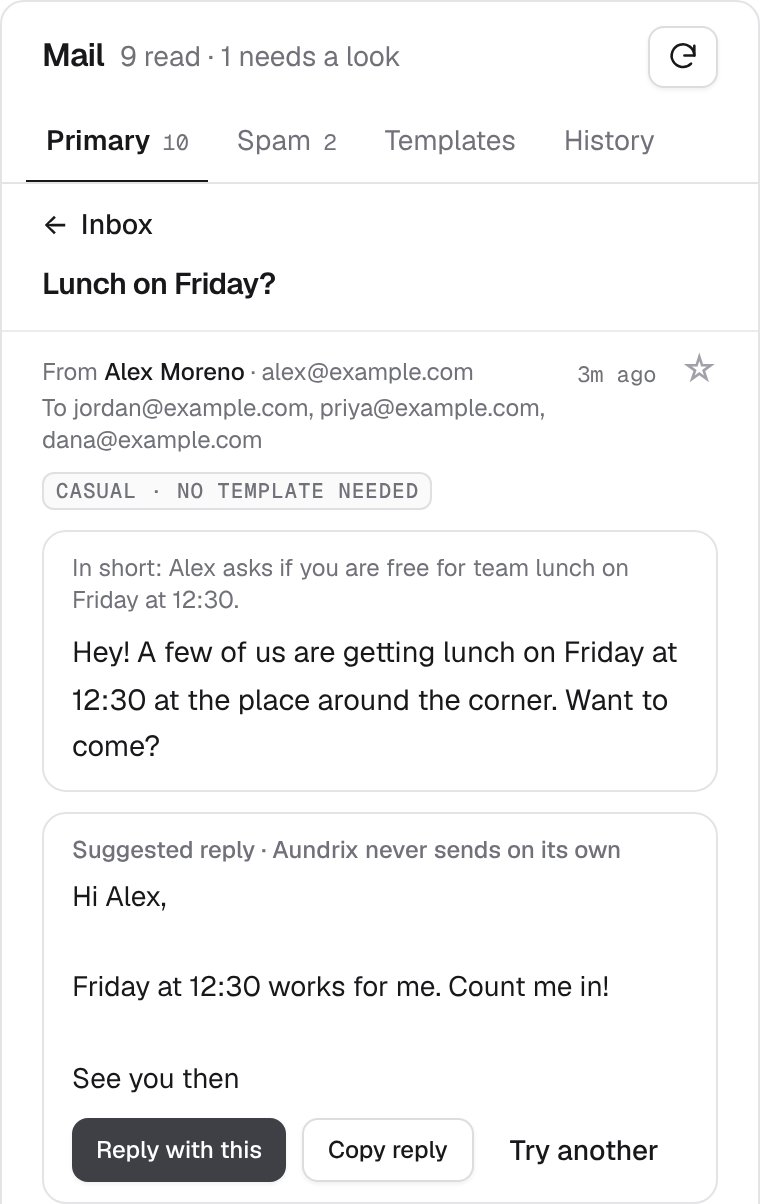
When Aundrix reads an e-mail as one kind of work, it suggests your own e-mail template for it, with the file number, today's date, your firm's own figures, and the signer's name filled in. When you ask, its AI writes a reply in the sender's language. Change either one as you like, or ask for another.
If a blank is still empty when you press Send, Aundrix tells you first. Nothing goes out until a person presses Send and confirms, and it goes from your own Gmail or Outlook.
-
Teach it your work.
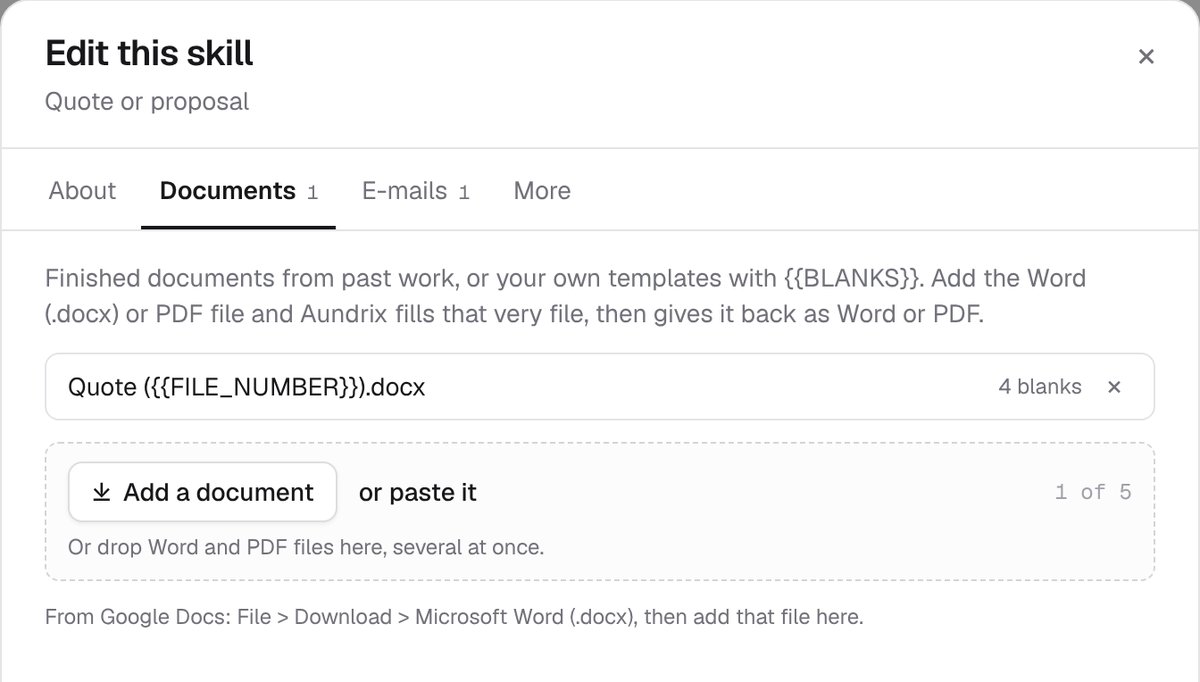
Each kind of work you do is a skill: a name, a few words on what it is and when it is due, and up to 20 documents and five e-mails. Word, PDF, and e-mail files dropped together each go where they belong.
- Aundrix fills your own Word or PDF template from the e-mail, the folder of files for that work, and your notes, and gives it back as Word or PDF.
- If a template is a finished document from earlier work, tell Aundrix what changes from one case to the next, and it puts the new case's details there.
- With every value it fills in, the AI gives the words it took it from, and Aundrix checks those words are really there. Anything it cannot confirm is marked check this, and a blank it cannot fill is left for you.
- A saved draft is marked for review, and nothing it drafts goes out on its own.
-
Work as a team.
A firm can split its work into teams, such as Intake and Drafting, and one person can be on several. Each person opens on their own team's view, and a bar at the top shows another team's work, or every team's at once.
Hand a piece of work to a colleague and it shows in their bell. Tick work off when it is done. Nothing is deleted.
-
Private by default.
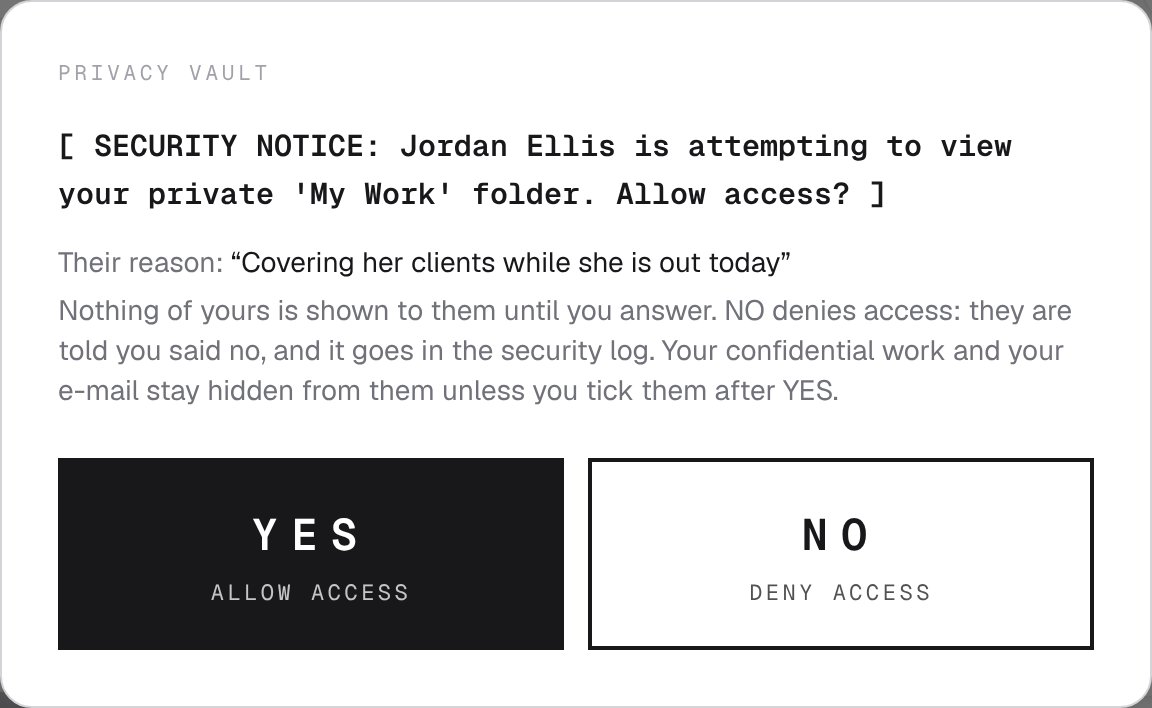
Each person's work stays private until they publish it to everyone's calendar. To see all of a coworker's work, you ask with a reason, and they answer yes or no, for as long as they pick.
Work marked Confidential and their e-mail stay closed even after a yes, unless they tick a separate box for each, and every look at the e-mail is recorded in the security log. Each firm has its own separate workspace, backed up every night.
Aundrix does the repetitive parts. You make the decisions.
- You press Send.No e-mail goes out until a person presses Send and confirms.
- Dates stay put.Aundrix offers a date and never changes one on its own.
- Unsure means a person looks.Anything it is not sure about goes under Needs a look.
- Nothing is deleted.Work is handed over or ticked off, and every firm is backed up every night.